Knowledge Base
Renault CLIP v251 and Driver v9.7.x software
Renault CLIP v251 and Driver v9.7.x software
SKU: Price: 299 USD Category: Auto Charge Software, Software services
software list:
- Renault Clip software v251
- Clip v251 driver: Renault_Clip_driver_9.7.2803.22_Installer.exe
- GxE_11.0.0.6_Installer_Renault.msi
Note: To use CLIP v250 normally, you also need to purchase the Renault USB Physical Token.
sp‑api‑data‑policy
We collect Amazon buyer PII solely for order‑fulfillment purposes. Buyer PII will never be sold or shared with third‑parties except when required by law.
All PII will be securely and permanently deleted within 31 days after order shipment, except for mandatory tax‑compliance and legal retention requirements.
Static PII data is encrypted‑at‑rest with AES‑256 and protected by RBAC role‑based access control.
Upon discovering any data breach or security incident related to Amazon‑sourced data, we will notify Amazon within 24 hours.
Our full general privacy policy: https://flyobd.com/privacy‑policy/
Do you ship to Colombia?
Q: Do you ship to Colombia?
A: We offer international shipping to many countries. For specific delivery options, costs, and lead times to Colombia, please contact our sales team or check our shipping policy at checkout.
How can I get a wholesale quotation for your auto-diagnostic products?
Q: How can I get a wholesale quotation for your auto-diagnostic products?
A: To receive an accurate wholesale quote, please provide the product model/SKU, target quantity, target market, preferred packaging, and delivery requirements. Once we have these details, we will send you the FOB price in USD (with CNY reference), tiered wholesale pricing, sample policy, MOQ, and OEM/ODM options. Exchange rate reference: 1 USD = 7.25 CNY (updated 2026-06-12).
OEM Tango 1.113 Car Key Programmer Full Software & Transponder
OEM Tango 1.113 Car Key Programmer Full Software & Transponder
SKU: OEM Tango Price: 198.0000 USD Category: Auto Key Programmer
The OEM Tango 1.113 is a professional transponder programmer that reads, writes, and generates keys for a vast range of vehicles, including Toyota, Honda, BMW, Audi, and VW. With full software and advanced immobilizer functions like BMW CAS and VW/Audi key making, it delivers complete key programming solutions in one device. Compatible with Windows XP, 7, and 8, this user-friendly tool is an essential investment for locksmiths and auto workshops worldwide.
The TANGO transponder programmer is developed to cover, read, write and generate the latest transponders used in the latest vehicle immobilizer technologies
OEM Tango Programmer Software Version:
- Firmware Version : v1.111.3;
- Software Version : v1.111.3;
Supported Languages: English.
Operation Notes OEM TANGO can work for Windows XP(SP2 or later) Professional Version,Windows 7 Ultimate and Windows 8 Professional; Tango Software Version V1.111.3 ;
OEM Tango Support List: Acura Brilliance Chang an Chang cheng Chery Daewoo Daihatsu FAW Group Geely Great Wall Honda Hyundai Infiniti Isuzu Kawasaki Kia Lexus Mazda Mitsubishi Nissan Proton Roewe Saipa Sammand SsangYoung Subaru Suzuki Tata Toyota Yamaha AD100 Out In codes 8 digits calculator
BMW CAS Keyless Go key maker BMW CAS remote key maker BMW CAS unlock and write locked with unknown password transponders PCF7943&PCF7944 key maker BMW bikes (Hi Tag 2) Key maker DAF key maker KESSY (Hi Tag 2) Audi , Bentley, Porshe, VW key maker New AUDI A6/Q7 EZS (Megamos 8E) Key maker VW Key maker FREE Offline Full Copy of TIRIS DST (ID6070) onto TPX2,EH2 FREE Image generator ID70 on ID4D Image generator ID67/68 on ID4D Full FREE production of TP22, TP23, TP24, TP25
Package Including: 1pc x Interface 1pc x USB 2.0 Cable 1pc x One Box
SVCI2019 with Abrites 18 & VVDI Software, Offline Use
SVCI2019 with Abrites 18 & VVDI Software, Offline Use
SKU: SVCI2019
Price: 289.0000 USD
Category: Auto Keys Transponder
The SVCI2019 enables offline diagnostics with Abrites 18 and VVDI software, providing key fob programming, ECU coding, and immobilizer solutions without an internet connection. Perfect for workshops and locksmiths, it offers broad vehicle coverage for European, Asian, and American brands, including Mercedes, BMW, VW, and Toyota.
Mazda PIN Code Service (2013+ Model) – Contact for Fees
Mazda PIN Code Service (2013+ Model) – Contact for Fees
SKU: Mazda
Price: 0.0000 USD
Category: Software services
Unlock secure access to Mazda’s latest 2013+ models with this precise PIN code service, enabling essential diagnostic and programming functions. Perfect for professional technicians and DIYers, it ensures seamless compatibility with modern Mazda vehicles. Contact us today for competitive pricing and fast, reliable support.
Mazda PIN code for new model(2013 - Now )
VNCI MDI2 GM Diagnostic Tool CANFD DoIP Protocol
VNCI MDI2 GM Diagnostic Tool CANFD DoIP Protocol
SKU: VNCI MDI2 Price: 219.0000 USD Category: Auto Diagnostic Tools
Unlock full GM diagnostic capability with the VNCI MDI2, a cost-effective alternative to the original MDI2 that supports CAN FD and DoIP protocols for faster, safer programming. Compatible with all GMC, Chevrolet, Buick, Cadillac, and Opel models from 1996 to present, it delivers 100% original performance for less than 10% of the price, includes free GDS and Tech2win software registration, and works on unlimited computers.
Software installation service is provided free of charge when purchasing equipment VNCI MDI2 is GM diagnostic interface that can be replace genuine GM MDI2 interface, compatible with the original driver. MDI2 is applicable to General Motors Global A platform and global B platform series models
Advantages:
- 100% support CAN FD communication, 100% support DoIP communication
- Support TLC online software, synchronization compatible with the latest MDI2 driver,
- Simulate the original GM MDI2 hardware device without worrying about hardware verification
- Support B platform offline programming, decrypt 27 security check algorithm
- Free registration of GDS, DPS, Tech2win software
- Unlimited computer can be installed to any computer
- Support USB and wifi direct connection and base station connection
- Faster and safer
- Cost-effective, 100% original performance, only need less than 10% of the price
Features:
- Support all GMC, Chevrolet, Buick, Cadillac and Opel models from 1996 to the present
- Support SAE J2534 Pass-Thru, CAN FD, DoIP, UART, Class2, KWP2000, GMLAN(CAN) protocol
- Support key matching, offline and online module programming, diagnosis
- Support CANFD/DoIP module diagnosis and programming
- Support GM global A platform models and global B platform models
- Support Pass-Thru programming program TIS2WEB-SPS, compatible with all functions of MDI generation
VNCI 6154A VAG Diagnostic Tool for ODIS-Sv23/E Plug & Play
VNCI 6154A VAG Diagnostic Tool for ODIS-Sv23/E Plug & Play
SKU: VNCI-6154A
Price: 119.0000 USD
Category: Auto Diagnostic Tools
The VNCI 6154A delivers seamless, plug-and-play diagnostics for VW, Audi, Skoda, and Seat vehicles, fully compatible with ODIS-Sv26/ODIS-Ev22. Perform advanced coding, programming, and control unit troubleshooting with reliable, dealer-level performance. Boost your workshop efficiency with this cost-effective, ready-to-use VAG diagnostic solution.
Overview
The VNCI 6154A is a professional-grade VAG diagnostic interface designed for VW/Audi/SEAT/Skoda vehicles. Engineered for seamless integration with the ODIS-S (Offboard Diagnostic Information System) software version Sv23/E, this plug-and-play tool delivers dealer-level performance at a fraction of the cost. Whether you're an independent workshop, mobile mechanic, or advanced DIY enthusiast, the VNCI 6154A offers reliable, fast, and secure communication with your vehicle's electronic systems.
Key Features
True Plug & Play Operation: No driver installation hassles or complex configuration required. Simply connect the VNCI 6154A to your vehicle's OBD-II port and your PC, launch ODIS-Sv23/E, and start diagnosing immediately.
Full ODIS-S Support: Compatible with ODIS Service version 23 and E, allowing for comprehensive diagnostics, coding, adaptations, and control unit programming.
High-Speed Data Transfer: Equipped with USB 2.0 connectivity and an advanced CAN interface, ensuring fast, stable data exchange between the vehicle and diagnostic software.
Dealer-Level Functionality: Performs all major functions including reading/clearing fault codes, live data streaming, actuator tests, control unit coding, security access, and basic settings.
Wide Protocol Coverage: Supports CAN, K-Line, UDS, and other key automotive protocols, ensuring compatibility with modern VAG models.
Durable Construction: Built with a rugged, shock-resistant housing and high-quality internal components designed for daily workshop use.
Cost-Effective Alternative: Provides OEM-equivalent diagnostic capability at a significantly lower investment, making it ideal for growing independent repair businesses.
Compatible Vehicles & Protocols
The VNCI 6154A is specifically designed for the Volkswagen Group (VAG) family, which includes the following marques:
Volkswagen (VW) – including Passenger Cars and Light Commercial Vehicles
Audi
SEAT
SKODA
It is fully compatible with most vehicles from 2000 onwards, covering all modern VAG platforms, up to and including the latest models supported by ODIS-Sv23/E. The tool supports a wide range of diagnostic protocols including ISO 9141-2, KWP2000, and CAN (Controller Area Network) with both 11-bit and 29-bit identifier support. It also communicates with UDS (Unified Diagnostic Services) protocol modules found on the newest generation of vehicles.
What's in the Box
VNCI 6154A VAG Diagnostic Interface Unit
OBD-II to OBD-II Diagnostic Cable
USB 2.0 Connection Cable
Protective Storage Case
Quick Start User Manual
Note: The ODIS-S software is not included on physical media and must be obtained separately by the user, as per technical licensing guidelines.
Why Buy the VNCI 6154A?
Time-Saving Efficiency: This tool drastically reduces diagnostic time compared to generic OBD-II scanners, allowing you to access manufacturer-specific modules and functions with ease.
Professional-Grade Accuracy: Access the same detailed data and diagnostic routines used by VAG dealerships, ensuring precise diagnosis without guesswork.
Immediate Return on Investment: Avoid costly dealer visits for simple diagnostics, coding, or services. Perform VW/Audi-specific tasks such as battery adaptation, electronic parking brake service, and throttle body alignment in-house.
Reliable After-Sales Support: Backed by a responsive technical support team to assist with any installation or usage questions, so you are never left without help.
Future-Ready Firmware: The device supports ongoing updates (where available) to keep pace with software revisions and new vehicle introductions.
Upgrade your workshop today with the VNCI 6154A and unlock the full diagnostic potential of your VW/Audi/SEAT/Skoda vehicles with professional precision and speed.
VNCI JLR DoIP Interface for Jaguar Land Rover Diagnostic
VNCI JLR DoIP Interface for Jaguar Land Rover Diagnostic
SKU: VNCI-JLR-DoIP Price: 269 USD Category: Auto Diagnostic Tools
The VNCI JLR DoIP Interface provides full diagnostic, programming, and anti-theft matching for Jaguar Land Rover models from 2005 to the latest year, replacing the original dealer tool. It supports SDD, Pathfinder, and TOPix software with plug-and-play compatibility via USB, WiFi, or wireless LAN for convenient, reliable vehicle access. Compact and portable, this tool enables ECU flashing, CCF modification, and fault guidance without requiring third-party drivers.
VNCI JLR DoIP, the new Jaguar Land Rover diagnostic tool, is compatible with the original software driver, supports SDD, pathfinder offline software supports TOPix online software, supports USB connection, WIFI direct connection, and wireless LAN connection. It can completely replace the original JLR DoIP VCI. Equipment. Supports Jaguar Land Rover models from 2005 to the latest model year, and can perform basic diagnostic functions, fault guidance and search, module programming, immobilizer matching and other functions for Jaguar Land Rover models. Product function
- Supports diagnosis, programming and anti-theft matching functions of Jaguar Land Rover models from 2005 to present
- Supports ECU flashing, CCF installation and modification, routine diagnostic code reading and clearing, flash hiding and other functions
- Support SDD, pathfinder offline software and TOPix online software
Product Features
- Compatible with original software drivers, no need for third-party software, plug and play
- Supports three connection methods: USB connection, WIFI direct connection, and wireless LAN connection
- Exquisite, compact and easy to carry
VNCI 6515SZ Suzuki Diagnostic Tool for SDT-II Software
VNCI 6515SZ Suzuki Diagnostic Tool for SDT-II Software
SKU: vnci-6516sz Price: 169.0000 USD Category: Auto Diagnostic Tools
Diagnose and program Suzuki vehicles with full OEM-level functionality using the VNCI 6515SZ, which is plug-and-play with the original SDT-II software and requires no third-party tools. It supports USB, WiFi, and wireless LAN connections, covers 3-way CAN and K-line protocols, and works on models from the Grand Vitara to SX4. This affordable alternative to the MTS 6516 delivers 100% genuine features, including module programming, key matching, and pass-through reprogramming.
VNCI 6515SZ Suzuki automobile diagnostic tool is compatible with the original SDT-II software driver. No third-party software is required. It is plug-and-play and can replace the original MTS 6516 Suzuki special inspection tool. Supports USB connection, WIFI direct connection, wireless LAN connection, supports 3-way CAN, 2-way UART, K line and other automotive communication protocols, and can perform diagnostics, module programming, key matching and other operations on most Suzuki vehicles.
Product function
Support most Suzuki car diagnostics, programming and immobilizer matching functions
It can replace the original MTS 6516 suzuki equipment and has the same functions as the original equipment.
Product Features
- Compatible with original software, no third-party software required, plug and play
- Supports three connection methods: USB connection, wifi direct connection, and wireless LAN connection
- 100% genuine function, 10% genuine price
Features The SDT 2 can diagnose the vehicle faster compared to previous tools giving you more time to repair the vehicle. The SDT 2 has similar diagnostic features compared to the original SDT, plus new features like VIN Lookup, Vehicle Health, and Communication Bus Check. The SDT 2 also has an accessory WIFI dongle (Included with this kit) allowing you to diagnose vehicles remotely from your workbench. The SDT 2 kit contains a VCI interface module, a 3M USB cable, and a 1.8M DLC cable (to diagnose a vehicle) The SDT 2 requires Software available from the European Suzuki website The SDT 2 diagnostic software only works on the latest Suzuki model vehicles (see model application list). The software requires a PC or Laptop with Windows 7, 8, 8.1 Grand Vitara (SQ625) 1999-2005 Engine/ Powertrain ABS Airbag BCM OMRON HVAC Grand Vitara XL7 (JA627) 2001-2006 Engine/ Powertrain TCM AWD 5AT ABS Nisshinbo 4WD JIDECO Airbag OCM (*1) BCM OMRON HVAC TPMS (2005-) Grand Vitara (JB627) 2006-2008 Engine TCM ABS/ESP® 4WD Airbag BCM TPMS is a built-in BCM. HVAC Immobilizer Grand Vitara (JB424/632) 2009-2014 Engine DENSO(2.4L) Bosch(3.2L) For 2009-2010MY TCM 4WD Airbag BCM TPMS is a built-in BCM. HVAC Immobilizer SX4 (RW420) 2007-2014 Engine TCM AT(-2009) CVT(2010-) ABS/ESP® 4WD Airbag BCM TPMS is a built-in BCM. HVAC Immobilizer(2008-) Reprograming The SDT 2 can also be used for pass-through reprogramming of modules on most Suzuki vehicles when combined with the SEPS software (see SEPS application list). Available from SUZKI European tech website Immobilizer Note: The SDT 2 now has Immobilizer key reprogramming function available using the accessory Immobilizer Dongle (Part # F-00K-108-870 only available to Suzuki Authorized Service Providers. (Not available to the aftermarket in EUROPE AT THIS TIME). Package Include 1 x VNCI 6516SZ 1 x 2M USB
VNCI VDI3 Diagnostic Tool for Roewe MG Wuling Maxus
VNCI VDI3 Diagnostic Tool for Roewe MG Wuling Maxus
SKU: VNCI VDI3 Price: 139.0000 USD Category: Auto Diagnostic Tools
Experience seamless diagnostics with the VNCI VDI3, designed to fully replace the original tool for Roewe, MG, Wuling, and Maxus vehicles. It supports CAN FD, DoIP, and SIPS online programming, offering plug-and-play functionality with no third-party software required. Compatible with VDS/VDS2/VDS3/GRADE-X software, this cost-effective solution handles diagnosis, module flashing, and anti-theft matching for both fuel and new energy vehicles.
VNCI VDI3 Roewe MG Wuling Maxus automotive diagnostic tool, compatible with VDS/VDS2/VDS3/GRADE-X original software driver, supports SIPS online programming software, supports CAN FD and DoIP communication, plug and play, no third-party software is required, and can be fully Replaces the original VDI3 diagnostic tool. Product function
- Supports functions such as diagnosis, module flashing and anti-theft matching for Roewe MG, Wuling Maxus fuel vehicles and new energy vehicles.
- Can replace the original VDI3 diagnostic tool, all VDI3 diagnostic tools have the same functions
Product Features
- Compatible with original software drivers, no third-party software required, plug and play
- Supports three connection methods: USB connection, WIFI direct connection, and wireless LAN connection
- Support DoIP and CANFD communication 4. 100% genuine function, 10% genuine price
VNCI RNM 3-in-1 Nissan/Renault/Mitsubishi Scanner Immobilizer ECU TCM DoIP
VNCI RNM 3-in-1 Nissan/Renault/Mitsubishi Scanner Immobilizer ECU TCM DoIP
SKU: VNCI-RNM
Price: 329 USD
Category: Auto Diagnostic Tools
Unlock full diagnostic, programming, and immobilizer capabilities for Nissan, Renault, and Mitsubishi vehicles with this 3-in-1 VNCI RNM scanner. It supports DoIP protocol and replicates all functions of Consult 3 Plus, CAN Clip, and MUT-3, ensuring seamless ECU and TCM work across every model from all three brands.
Powerful and stable diagnostic VCI, support car from 1995 to now, include new electric car equipped with OBDII-16 socket. To use the VCI, you must install and run device management software before run diagnostic software, please read the manual in CD carefully to learn how to make VCI work.
5 main features:
Support latest CONSULT-III Plus, R2R, CONSULT-IV software
Support latest CLIP and ADT software
Support latest MUT-III software
Compatible with Passthru 04.04 and 05.00, ISO 22900-2
Support latest diagnostic protocol for new car model, such as CAN FD, DoIP
Which type of vehicles can do?
for Nissan Ariya EV vehicle
for Nissan Leaf EV vehicle
for Nissan all gasoline vehicles
for Infiniti all vehicles
for DATSUN all vehicles
for Renault all vehicles
for Mitsubishi all vehicles
Support Three Connections Modes:
USB connection
Access Point connection
WLAN Infrastructure connection.
VNCI RNM advantage
Replacement of original diagnostic tools:The VNCI RNM is a complete replacement for the consult 3 plus VI3 diagnostic tool, providing professional-grade diagnostic capabilities for Nissan, Renault and Mitsubishi vehicles.
Compatibility with the latest software versions:VNCI RNM supports the latest consult 3 plus v226 and above software versions, ensuring you have access to the latest diagnostic features and performance.
Multi-brand support:The VNCI RNM is available vehicles for Nissan, Renault and Mitsubishi brands, covering a wide range of models and systems from these brands.
Powerful diagnostic capabilities:VNCI RNM offers a wide range of diagnostic capabilities, including fault code reading and clearing, sensor detection, real-time data stream monitoring, programming and coding, special function activation, and more.
Easy to use:VNCI RNM is simple and intuitive to operate, with a user-friendly interface and an easy-to-navigate menu structure that allows you to quickly and accurately perform diagnostic and repair operations.
Reliability and stability:VNCI RNM uses high-quality hardware and stable software to ensure the reliability and stability of the diagnostic process to provide accurate diagnostic results.
Package Includes:
1pc x VNCI RNM interface
1pc x USB cable
VNCI VCM3 Diagnostic Interface for Ford Mazda OEM Plug and Play
VNCI VCM3 Diagnostic Interface for Ford Mazda OEM Plug and Play
SKU: VNCI VCM3 Price: 169.0000 USD Category: Auto Diagnostic Tools
Unlock full factory-level diagnostics for Ford and Mazda vehicles with the VNCI VCM3, an OEM plug-and-play interface that requires no third-party software. It supports CAN FD and DoIP communication for advanced diagnostics, programming, and immobilizer matching on models from 1996 to 2026+, including new Ford pickup trucks. Effortlessly connect via USB, Wi-Fi direct, or wireless LAN for seamless, professional-grade performance worldwide.
VNCI VCM3 diagnostic interface for new Ford Mazda is compatible with Ford Mazda original software driver. No third-party software is required. It is plug-and-play and can completely replace the original VCM3 diagnostic tool. Supports CAN FD and DoIP communication, can support diagnostics, programming, immobilizer matching and other functions of new Ford models and Ford pickup trucks, and supports three network connection methods: USB connection, WIFI direct connection and wireless LAN connection.
Product function
- Supports all functions of Ford IDS, FDRS, Mazda IDS, MDARS software of any version
- Supports fault diagnosis, module flashing, immobilizer matching and other functions for Ford models from 1996 to 2023+ and new Ford pickup trucks.
- Support DoIP and CAN FD communication 4.Support 4 channel CAN BUS
Product Features
- Compatible with original software driver, no third-party software required, plug and play
- Supports three connection methods: USB connection, WLAN Access point, and WLAN Infrastructure
VNCI PT3G Porsche Diagnostic Interface for PIWIS - Plug & Play
VNCI PT3G Porsche Diagnostic Interface for PIWIS - Plug & Play
SKU: VNCI-PT3G Price: 279 USD Category: Auto Diagnostic Tools
Experience full Porsche diagnostic capability with the VNCI PT3G, a true plug-and-play interface that works seamlessly with the original PIWIS software. It covers all Porsche models from 1996 to the latest, enabling diagnostics, coding, and programming at a fraction of the dealer-tool cost. Connect via USB or WiFi and perform professional-level service effortlessly.
Note: 279usd is VNCI PT3G price without PIWIS3 software
If you would like to purchase a PIWIS3 software computer , please contact me via email, skype or whatsapp
email: flywang1688@163.com
whatsapp: +86 13421934653
PIWIS3 diagnostic softwre v42.20
The VNCI PT4G Porsche Diagnostic tool is designed for diagnostic, programming and immobilizer operations on both old and new Porsche models. Compatible with the original Porsche diagnostic system PIWIS software driver, supports the latest PIWIS software and any PIWI version. It can completely replace the original Porsche diagnostic tool PT4G. VNCI PT4G supports USB, WIFI direct connection and WIFI LAN three kinds of connection.
PIWIS diagnostic software supports 23 languages, including German, English, Chinese, French, Italian, Spanish, Japanese, Polish, Portuguese, and Dutch
Support Porsche 9PA 9YA 9YB 92A 95B 918 970 971 981 982 986 987 991 992 996 997 Y1A and all Porsche models from 1996 to the present.
Introduction to PIWIS3 diagnostic system
The PORSCHE PIWIS Diagnostics system is used for fault finding diagnostics and code refresh programming of the control unit for Porsche vehicles, and the PIWIS3 TESTER integrates complete diagnostic functions for all Porsche models. PIWIS3 also allows different control units to be read simultaneously, simplifying diagnostics. Ecus can be coded automatically, individually, or from a control table. The PIWIS3 vehicle status record (known as the VAL Protocol - Vehicle Analysis Log) is now automatically registered when the vehicle is in use, during maintenance, and after maintenance has been completed. The PIWIS3 can be used for DC and AC voltage measurement, DC and AC current measurement, diode test, resistance measurement, on/off or open circuit test to show the change of voltage, current and resistance over time, with oscilloscope function.
PIWIS3 Software system Troubleshooting Guide is faster and easier to use. It can display all diagnostic information, initiation procedures, and possible fault sources, and significantly revised "guided fault finding" (GFF) means that repeated repairs (" first fix ") are further reduced. Integrated online teaching function, easy operation, integrated new database, direct access to the Porsche PIWIS workshop technical information system
Piwis3 features:
- Diagnose the application
- Boot Fault Finding (GFF)
- Actual value/input signal function
- Drive link/test function
- Maintenance/repair function group
- Coding/programming function group
- Logging8. filter
- Application of wiring diagram
Supports Porsche PPN online remote, has the latest PIDT engineering database, allows you to code Panamera, Cayenne E3, Taycan and more
Features and specifications of the PIWIS system
Read/clear error codes, capture data flow, computer programming matching, component testing, service information consulting, component field drawing, wiring diagram.
Porsche Piwis Tester IV works with old and latest Porsche cars. It comes with a Panasonic laptop and original test software. The Porsche Piwis Tester IV helps you diagnose and program the latest and old Porsche cars. Examples include the 911(997)(991), Boxster/Cayman(987), 2010-2010 Cayenne, 2011-2011 Cayenne, and Panamera.
The new Panamera can only be diagnosed using the Porsche Piwis Tester IV. According to the current project plan, all early models will be gradually replaced by the new Porsche Piwis Tester IV by the end of 2010. The Porsche PIWIS Tester IV covers all-new Porsche models such as the all-new Panamera 971, Cayenne 9Y0 E3, Panamera 992, Cayman 982 GT4 Clubsport, etc., which do not support the PIWIS II at all. Will not support it in the future.
Support Porsche. Once the early diagnostic procedures are transferred to the Porsche Piwis Tester IV, the Piwis Tester I will no longer be available. When Porsche Piwis Tester IV is distributed, it will include a basic software. This is necessary to start and configure the tester. This system will support Porsche Macan CarPlay activation and PPN online remote support, it does not support Porsche CarPay full screen activation.
Porsche Piwis Tester IV support system
Engine automatic transmission, air conditioning, SRS, ABS, ASR, MPL, GM, original anti-theft system, keyless system, OBDII system.
BGM gateway module online programming
Porsche Tekken Sport software update
The rear/front modules are programmed, new or used depending on the state of the car
Key programming (keys sorted by VIN)
Second-hand ECU CP module is unlocked
Engine control module replacement programming
Transmission module PPN online programming
VTS disable
OEM renovation project PPN coding programming
2019-2022 Sport Chrono Sport plus remote activation of PIWIS4 and 5054A VCI
Each project checks the OEM retrofit wiring diagram, such as 360 Surround view, ACC, AMP
OEM modification remote guide technical support hourly or per VIN login check
OEM Apple CarPlay activation for the Porsche Macan 95B via PPN online
PIWIS 4 System update supports PPN online and PIDT new
Gateway module online programming -
Porsche Taycan Sports Software Update -
Back/front end module programming -
Key programming (key press VIN order)-
Used ECU module CP unlock -
VTS Disable -
OEM retrofit project PPN coding programming -
Check the OEM retrofit wiring diagram for each project -
OEM retrofit remote guide technical support every hour
Porsche OEM refit, please specify item -
OEM Apple CarPlay online activation via PPN -
PIWIS3 System update supports PPN online and PIDT new -
SMARTPCM Device Suite for PCM Solutions -
PCM5 MH2p Full screen CarPlay enabled -
PCM5 MH2p Android automatic activation -
PCM4/4.1 MHI2 Android Automatic activation -
PCM5 MH2p system Region conversion USA -> EU, USA -> Japan, USA - tw -
PCM4/4.1 MHI2 system Region Conversion USA -> EU, USA -> Japan, USA - tw -
Nissan 5/20 Bit PIN Code Calculator Software
Nissan 5/20 Bit PIN Code Calculator Software
SKU: Nissan-oc-54
Price: 32.0000 USD
Category: Software services
Unlock Nissan vehicle security with this advanced 5/20 bit PIN code calculator software, enabling quick and accurate key programming for a wide range of Nissan models. Ideal for auto locksmiths and workshops, it simplifies the process for international cross-border diagnostics, eliminating guesswork and saving valuable time. Compatible with major diagnostic tools, it ensures seamless integration for efficient, reliable service.
Nissan 5/20 bit PIN Code Calculator
Ford IDS/FDRS Online Service | Contact for Pricing
Ford IDS/FDRS Online Service | Contact for Pricing
SKU: Ford
Price: 68 USD
Category: Auto Charge Software, Software services
Access Ford IDS and FDRS software without the need for a dealer account or license. Our online service provides temporary, secure access to Ford’s servers for module programming and diagnostics, with expert support available. Contact us via WhatsApp for pricing and to start your 4-hour session at $68.
some people are very confuse and say whats online service.
Here is our explanation:
As ford ids and fdrs software continue to be update, more and more vehicle maintenance
engineers do not purchase ford dealer account and license, so we launched the online service.
so that solved the costomer problem without dealer account and license.
How are online service provided?
When you want to program some modules, or need to access FDRS software, We offer temporary licenses and access to ford server via our ford dealer account. and then you can program for your cars modules or to do others online funciton.
By the way, when you purchased this service , you have to contact us with whatsapp(+86 13421934653)
whats price for ford online service, and how long?
Each temporary authorization to access online functionality costs $68, 4 hours per session.
if you do not know how to programming, you can contact us, we will help you solved your
module problem. price is same, 68usd/one car
Company profiles
Shenzhen Rockway Technology Co., Ltd. was established on June 6, 2022, and is headquartered in , Yuehai Street, Nanshan District, Shenzhen. The company's main business is mainly research and development of automotive electronic diagnostic tool, serving the industry original factory mode solutions are provided. The company's core team has been deeply involved in the automotive electronics industry for 20 years and all have senior industry backgrounds. We have rich technology accumulation and will continue to innovate and develop to meet changing market needs.
At present, the company mainly develops VNCI series automotive diagnostic products, mainly in original factory compatible mode. Our product goal is "100% genuine's function, 10% genuine's price". It provides customers with a second choice of original factory model, and also provides customers with a cost-effective choice.
We are committed to creating highly reliable and cost-effective automotive diagnostic products for our customers, helping automotive maintenance engineers improve work efficiency and reduce maintenance costs.
Our purpose: Seek truth from facts, strive for excellence, and be driven by innovation.
VNCI (Vehicle Network Communication Interface) series of products are completely independently developed by our company and are not clones of original equipment. From chip use to PCB design to firmware programming, they are all independently developed by our company, no matter what they are used for. The chip is still a PCB design, and the firmware program is completely different from the original equipment. The VNCI series products condense the essence of our R&D team's 20 years of R&D experience. Our company has complete intellectual property rights for all VNCI series products.
VNCI Diagnostic Software Update Package
VNCI Diagnostic Software Update Package
SKU: SW-UPDATE-001
Price: 35 USD
Category: Software/Update
Unlock the full potential of your VNCI interface with the latest diagnostic software updates, ensuring compatibility with the newest vehicle models and enhanced system performance. This digital download package provides seamless access to critical firmware and software patches, letting you tackle advanced repairs with confidence. Perfect for professional workshops and DIY enthusiasts seeking reliable, up-to-date automotive diagnostics.
Demo software product. After purchase, customer can download files. Version is managed via ACF.
VNCI 6154B VW Audi Diagnostic Tool ODIS OEM VCDS-III Compatible
VNCI 6154B VW Audi Diagnostic Tool ODIS OEM VCDS-III Compatible
SKU: VNCI-6154B
Price: 189 USD
Category: Auto Diagnostic Tools
Unlock professional-level diagnostics for VW and Audi vehicles (1996-2026) with the VNCI 6154B, offering full compatibility with both ODIS and VCDS-III software in one device. Enjoy blazing-fast performance with USB speeds 40x faster and dual-band 5GHz Wi-Fi, plus three connection modes (USB-C, Wi-Fi, LAN) for ultimate flexibility. A cost-effective powerhouse that replicates all factory functions at a fraction of the original price.
VNCI 6154B Volkswagen & Audi Diagnostic Tool, Compatible with original factory software and drivers, plug and play.
Compared with the original VAS 6154B and HEX-NET, the VNCI 6154B is compatible with both ODIS and VCDS software drivers.
One device works as two, delivering an outstanding cost-performance ratio!
It supports 2.4GHz and 5GHz dual-band Wi-Fi as well as 5G wireless network communication. The USB communication speed is increased by 40 times,
and DoIP communication speed is boosted by 5 times.
The VNCI 6154B features three connection modes: USB Type-C, Wi-Fi P2P and LAN, meeting the needs of different usage scenarios.
It supports new protocols including DoIP and CAN FD, as well as classic protocols such as K-line. It covers all Volkswagen and Audi models from 1996
to 2026 and newer versions.
It fully replicates all functions of HEX-NEXT VCDS 3rd Generation, supporting full vehicle scanning, basic settings, adaptation and more professional functions.
Don’t hesitate—repair and modification shop owners, place your order now!
Compared with the VNCI 6154A and other similar products, the 6154B is upgraded not only in hardware configuration, but also with breakthrough functions
and leading-edge technology.
It delivers 100% of the two mainstream original factory-level functions at less than 10% of the original price. Choosing the VNCI 6154B is undoubtedly one of
the best decisions for auto repair and modification professionals.
VNCI PT3G wirless connection configuration guide
Solved Ford VCI software show "Update VCI" problem
When using IDS v132 software or the latest FDRS software, the system prompts that the VCI Device Manager must be updated to the latest version. After the update, running IDS v132 or FDRS software with the VNCI VCM3 will result in failure to establish communication with the vehicle. This issue is caused by incompatibility between the current device firmware and the latest Ford VCI driver. The solution is as follows:
First, restore the VNCI VCM3 device to its factory settings.
https://vnciobd.com/?article/VNCI-Factory-Reset-Operation.html
Second, add the offline upgrade executable file `esp32_ota2.exe` to the firewall.
Finally, Use the VNCI VCM3 offline upgrade program to upgrade the VNCI VCM3 firmware to version v1.0.1.4. The download link for the VNCI VCM3 offline upgrade package is as follows:
https://ln5.sync.com/dl/225763dd0#rv8edtaj-6fbw4kaq-3awi9p48-8ymx4t6u
Note: it must be connect your VNCI VCM3 to your computer
Solved JLR “VCI Update” problem
解决安装路虎最新的驱动程序后,SDD和pathfinder软件通信不正常的问题
1. 安装最新的驱动软件
https://diagnosticdelivery.jlrext.com/idscentral/jlr_v9.7.2798.42_setup.exe.zip
参考说明: https://vnciobd.com/?article/VNCI-Factory-Reset-Operation.html
3. 下载安装VNCI设备管理器, 然后将设备固件升级到最新版本
VNCI设备管理器
https://ln5.sync.com/dl/cc17552a0#r4yqxaqs-iiuq2g4x-b9v8ef4n-3putav7v
4. 安装JLR VCI 设备管理器 v9.7.2798.42后,该版本不支持 SDD 和 Pathfinder 软件。
因此你需要将PDUAPI_Bosch.dll文件复制到以下路径以解决该问题:
"C:Program Files (x86)BoschVTX-VCIVCI Software (JLR)ProductsJLR-DoIPDoIP"
PDUAPI_Bosch.dll 下载地址:https://ln5.sync.com/dl/236399d50#qayjve8k-7k5fe6vj-d3qb5t85-hm5xsj67
Solved new jlr vci device manager do not support sdd and pathfinder software problem
1. Install the latest JLR VCI driver software
https://diagnosticdelivery.jlrext.com/idscentral/jlr_v9.7.2798.42_setup.exe.zip
2. Restore VNCI JLR DoIP to factory settings
Reference instructions:
https://vnciobd.com/?article/VNCI-Factory-Reset-Operation.html
3. Download and install the VNCI Device Manager, then upgrade the device firmware to the latest version VNCI Device Manager
https://ln5.sync.com/dl/cc17552a0#r4yqxaqs-iiuq2g4x-b9v8ef4n-3putav7v
4. when you installed JLR VCI device manager v9.7.2798.42, it will not be support SDD and pathfinder software
So you have to copy PDUAPI_Bosch.dll to following folder to solved the problem
“C:Program Files (x86)BoschVTX-VCIVCI Software (JLR)ProductsJLR-DoIPDoIP”
PDUAPI_Bosch.dll download address:
https://ln5.sync.com/dl/236399d50#qayjve8k-7k5fe6vj-d3qb5t85-hm5xsj67
Solved VCM3 newest driver compatible problem
When using IDS v132 software or the latest FDRS software, the system prompts that the VCI Device Manager must be updated to the latest version. After the update, running IDS v132 or FDRS software with the VNCI VCM3 will result in failure to establish communication with the vehicle. This issue is caused by incompatibility between the current device firmware and the latest Ford VCI driver. The solution is as follows:
First, restore the VNCI VCM3 device to its factory settings.
Second, add the offline upgrade executable file `esp32_ota2.exe` to the firewall.
Finally, Use the VNCI VCM3 offline upgrade program to upgrade the VNCI VCM3 firmware to version v1.0.1.4. The download link for the VNCI VCM3 offline upgrade package is as follows:
https://ln5.sync.com/dl/225763dd0#rv8edtaj-6fbw4kaq-3awi9p48-8ymx4t6u
Note: it must be connect your VNCI VCM3 to your computer
ODIS software installation guide
Solved New JLR VCI device compatible problem
解决安装路虎最新的驱动程序后,SDD和pathfinder软件通信不正常的问题
1. 安装最新的驱动软件
https://diagnosticdelivery.jlrext.com/idscentral/jlr_v9.7.2798.42_setup.exe.zip
2. 将VNCI JLR DoIP恢复出厂设置
参考说明: /knowledge/?wptk_doc=3
3. 下载安装VNCI设备管理器, 然后将设备固件升级到最新版本
VNCI设备管理器
https://ln5.sync.com/dl/cc17552a0#r4yqxaqs-iiuq2g4x-b9v8ef4n-3putav7v
4. 安装JLR VCI 设备管理器 v9.7.2798.42后,该版本不支持 SDD 和 Pathfinder 软件。
因此你需要将PDUAPI_Bosch.dll文件复制到以下路径以解决该问题:
"C:Program Files (x86)BoschVTX-VCIVCI Software (JLR)ProductsJLR-DoIPDoIP"
PDUAPI_Bosch.dll 下载地址:https://ln5.sync.com/dl/236399d50#qayjve8k-7k5fe6vj-d3qb5t85-hm5xsj67
Solved new jlr vci device manager do not support sdd and pathfinder software problem
1. Install the latest JLR VCI driver software
https://diagnosticdelivery.jlrext.com/idscentral/jlr_v9.7.2798.42_setup.exe.zip
2. Restore VNCI JLR DoIP to factory settings
Reference instructions:
3. Download and install the VNCI Device Manager, then upgrade the device firmware to the latest version VNCI Device Manager
https://ln5.sync.com/dl/cc17552a0#r4yqxaqs-iiuq2g4x-b9v8ef4n-3putav7v
4. when you installed JLR VCI device manager v9.7.2798.42, it will not be support SDD and pathfinder software
So you have to copy PDUAPI_Bosch.dll to following folder to solved the problem
“C:Program Files (x86)BoschVTX-VCIVCI Software (JLR)ProductsJLR-DoIPDoIP”
PDUAPI_Bosch.dll download address:
https://ln5.sync.com/dl/236399d50#qayjve8k-7k5fe6vj-d3qb5t85-hm5xsj67
VNCI RNM diagnosis 2023MY Nissan Ariya EV car with VNCI RNM. communicate protocol is doip.
VNCI RNM/JLR/VCM3/6516SZ/VDI3 Factory Reset Operation
博世系列产品恢复出厂设置方法
1. 断开所有连接
2. 按住指示灯附近按钮, 并保持按住状态不放手
3. 将USB线和连接电脑和设备, 直到设备发出一声“滴滴”响声,然后松开手
4. 最后, 在电脑端打开VNCI设备管理器把设备固件升级到最新即可。
Method to restore Bosch series products to factory settings
1. Disconnect all connections
2. Press and hold the button near the indicator light without releasing it
3. Connect the computer and the device with a USB cable until the device makes a "di-di" sound, then release the button.
4. Finally, open the VNCI Device Manager on the computer and upgrade the device firmware to the latest version.
Install Consult 3 plus software and actived immobilizer function with VNCI RNM
VNCI PT3G wireless connection configuration details
Step1: Upgrade new version
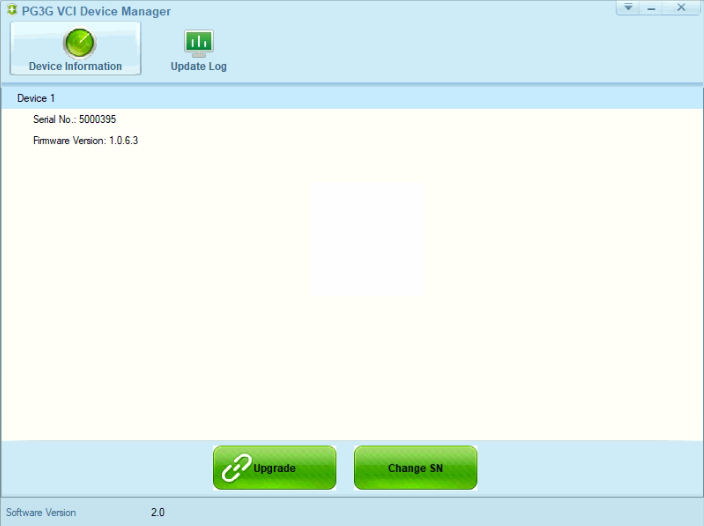
you have to install newest version vnci pt3g device manager and upgrade the vnci pt3g firmware to the latest version, as shown below picture.
new version now(2024-07-04)
VNCI Device manager v2.0
firmware version: 1.0.6.3
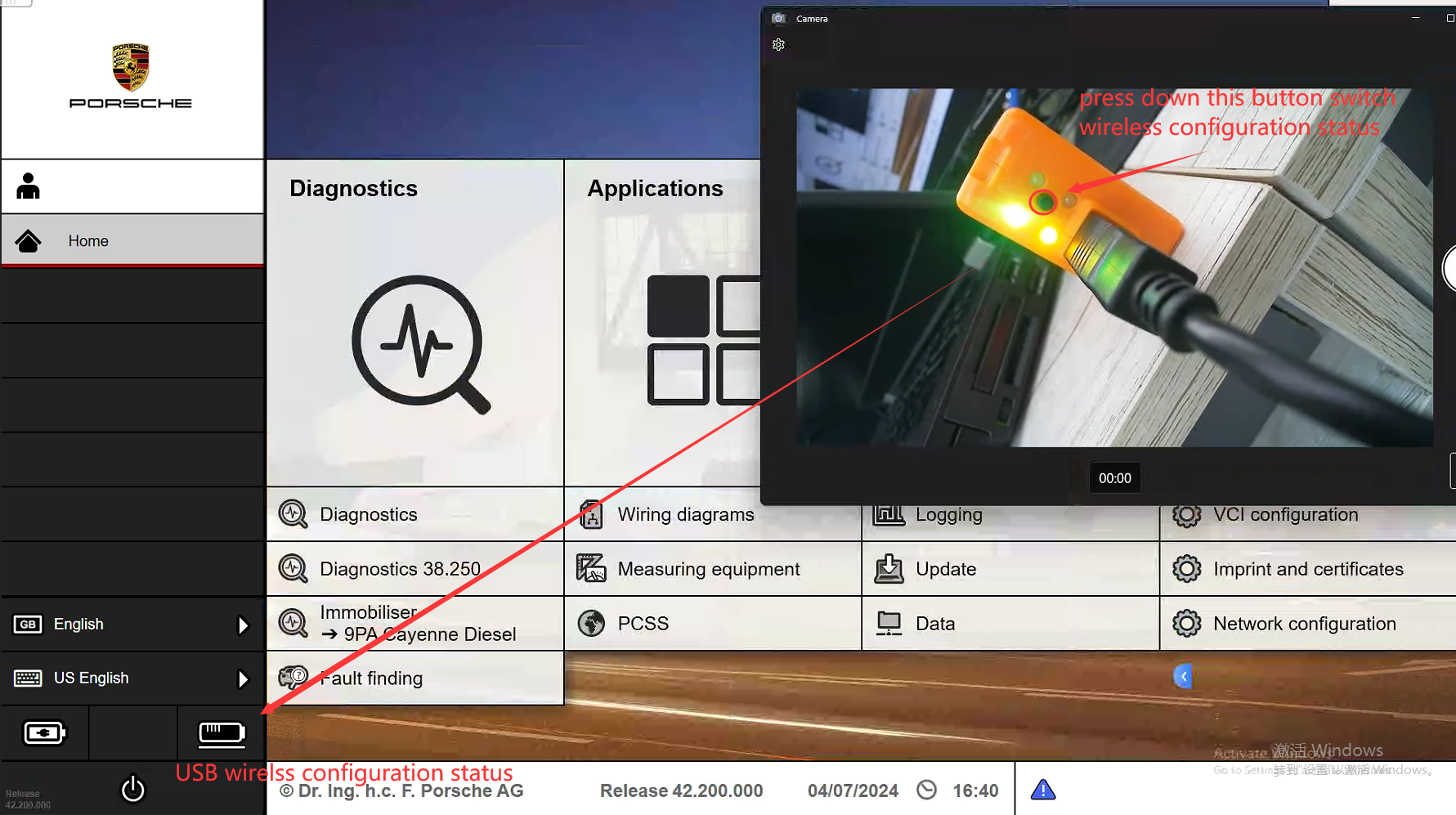
Step2: Connect VNCI PT3G to the piwis software and switch to the USB cable wireless configuration state.
Step3: Configure the WLAN connection and AP connection network information
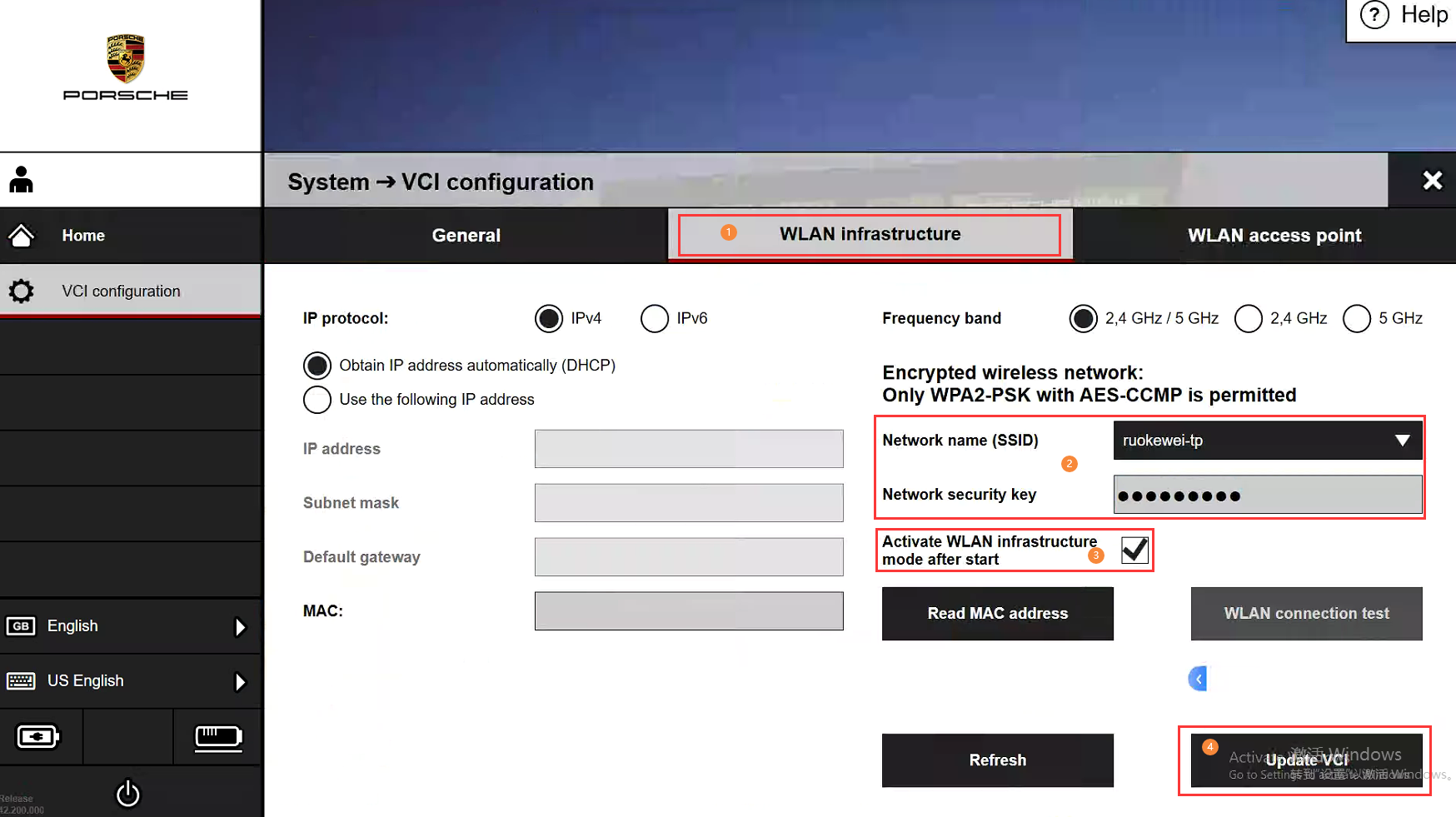
1. WLAN connection information configured, as shown below picture
① select "VCI configuration->WLAN Infrastructure" menu
② enter your network name and passoword
③ This check box must be checked
④ After entering all the correct configuration information, click “Update VCI” button to save the configuration information
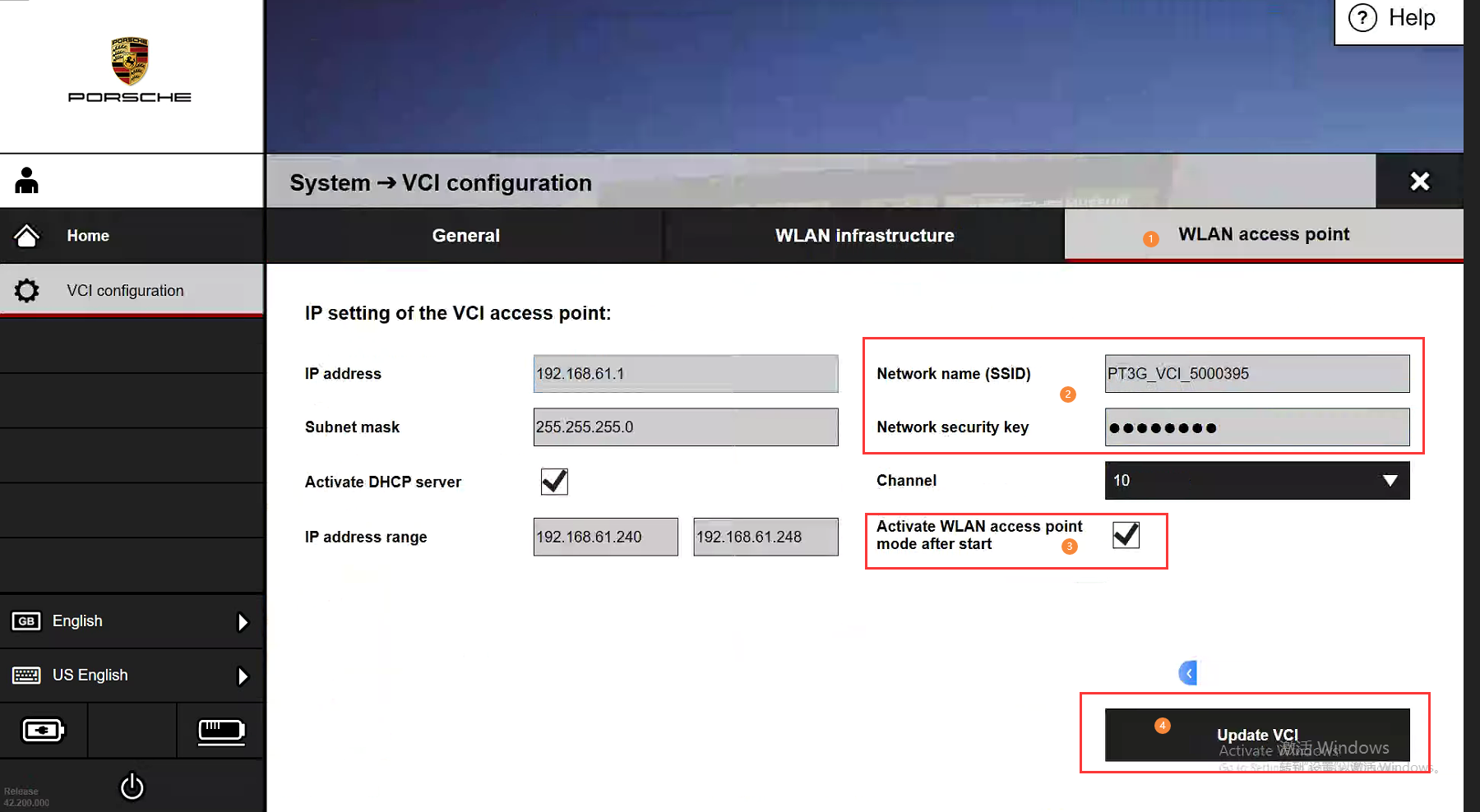
2 . AP(Access point) connection information configured,as shown below picture
① select "VCI configuration->WLAN access point" menu
② Custom wireless network name(Default network name is “PTG_VCI_{device number}”) and password
③ This check box must be checked
④ After entering all the correct configuration information, click “Update VCI” button to save the configuration information
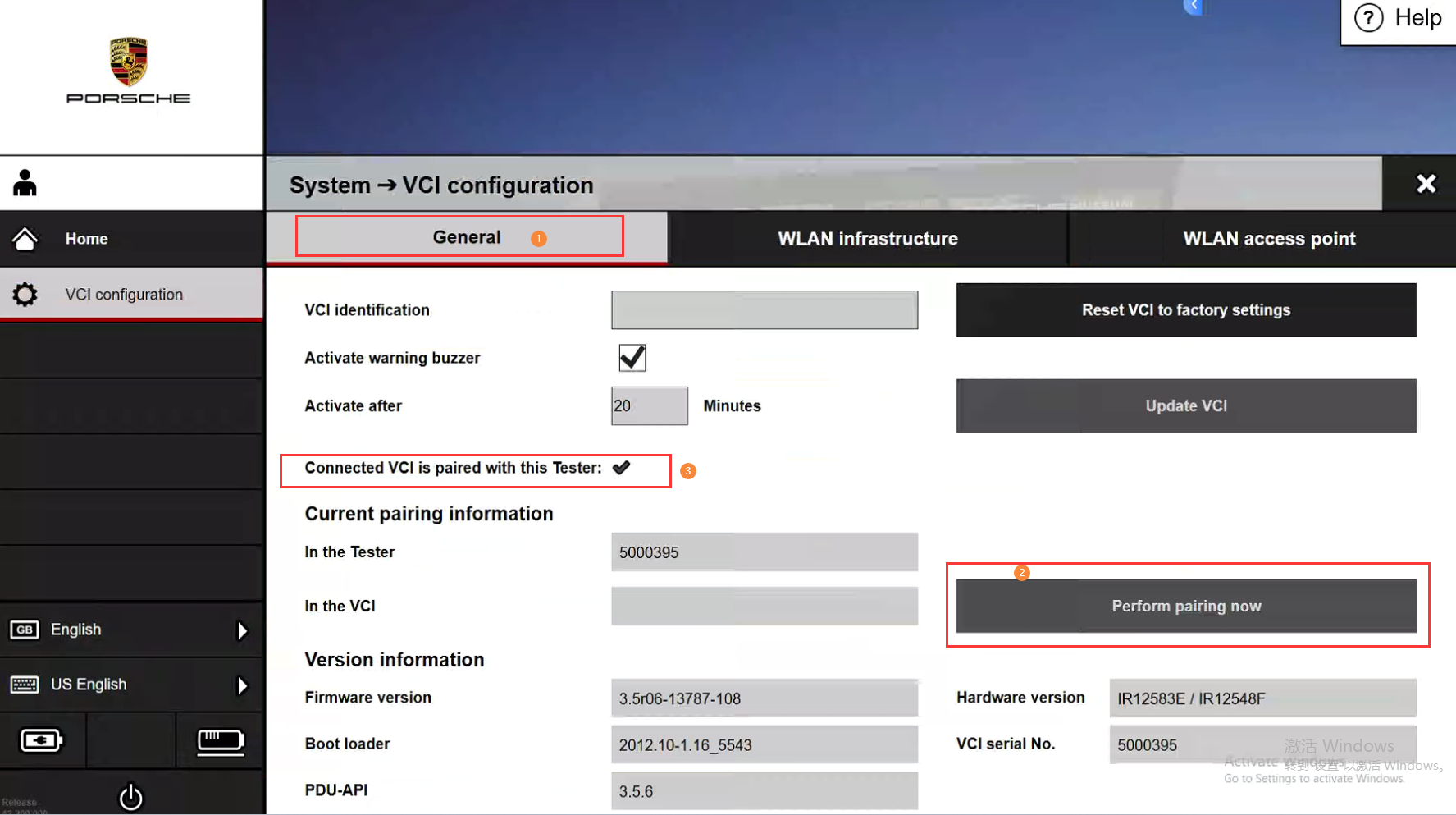
Step4: Pairing the current computer PIWIS3 system and VNCI PTG configuration information ( Very important! Very important! Very important! )
After the WLAN connection and AP connection configuration information are configured, you need to perform the matching operation on the PIWIS3 software of the current computer to use VNCI PT3G wireless connection on the current computer. Each time you replace the PIWIS computer, the VNCI PT3G wireless connection information must be matched again(important!!! important!!! important!!! )
As shown below picture
①select "VCI configuration->WLAN access point" menu
② Click "perform pairing now" button
③ If the pairing is successful, here is a "✔", if the pairing is unsuccessful here is "X"
Step5: Disconnect usb port, Restart PIWIS3 software
1. Wirless connection by WLAN infranstructure
①Ensure that the current computer is connected to the network as same as the VNCI PT3G WLAN configuration network
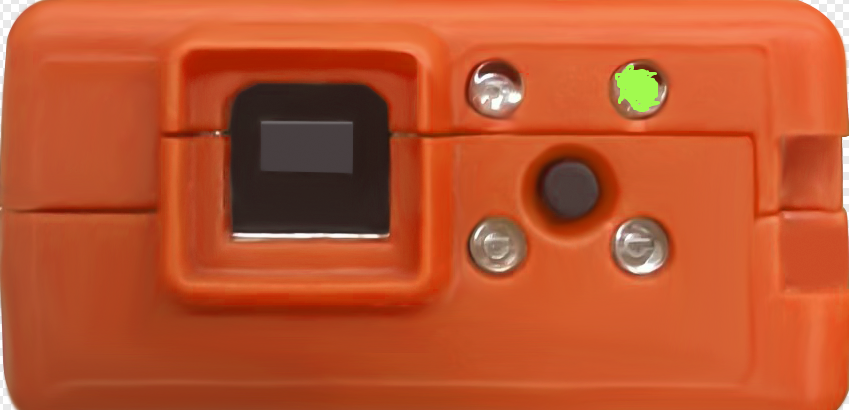
②connect VNCI PT3G to your car or OBD16 power supply, Press and hold the VNCI PT3G button until the led light status changes, as shown bellow picture
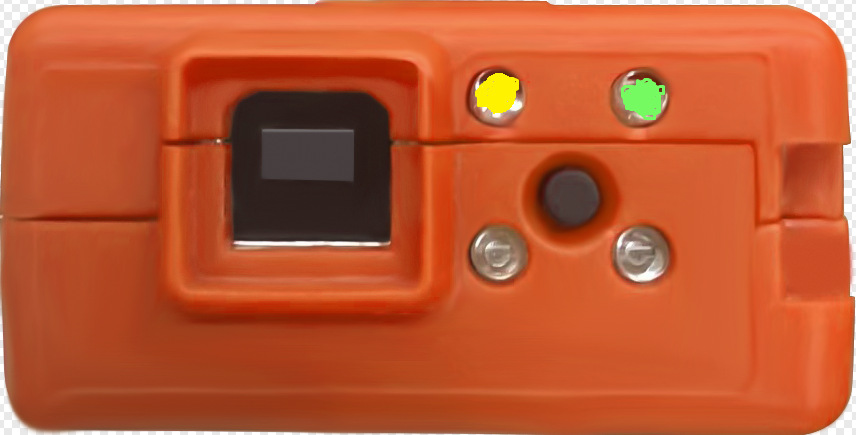
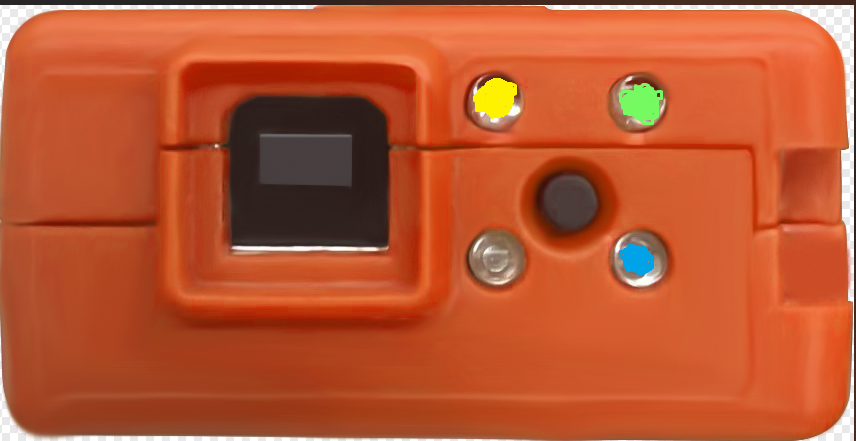
WLAN Infranstructure connection LED light two status
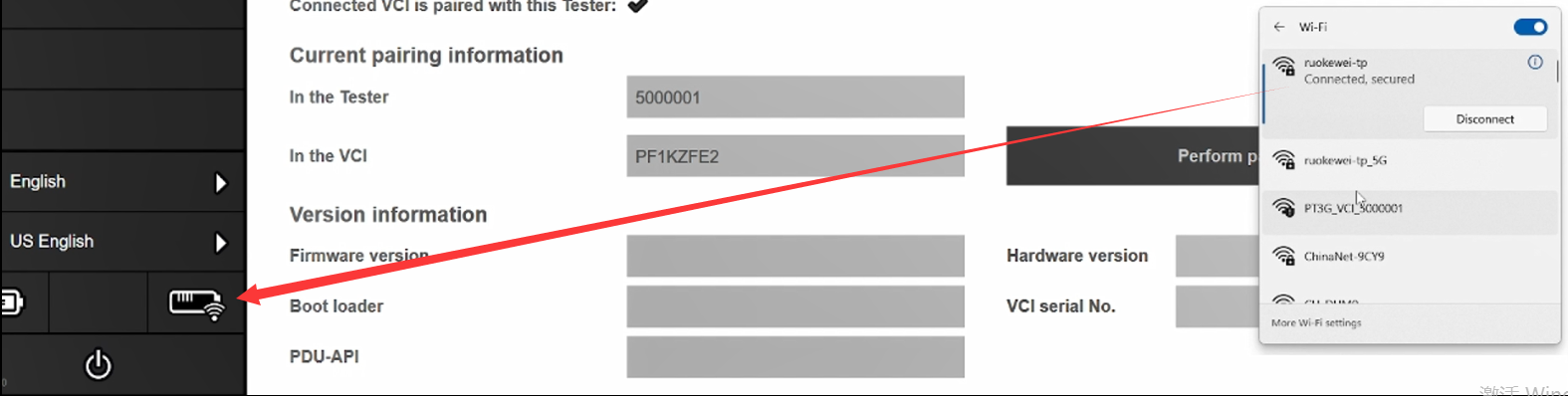
③When VNCI PT3G connect to PIWIS3 software by WLAN Infranstructure , The VNCI PT3G make a deep sounds, and piwis3 software will show wireless connection icon, as shown bellow picture
1. Wirless connection by WLAN Access point connection mode
① Connect VNCI PT3G to your car or OBD16 power supply, Press and hold the VNCI PT3G button until the led light status changes, as shown bellow picture.
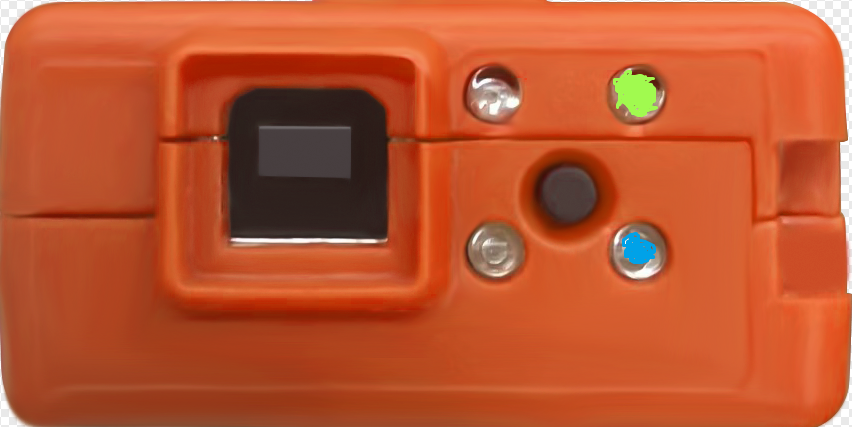
AP(Access point) connection LED light two status
② Enter the AP connection custom password, and after the device make a long deep sound, the PIWIS3 system will have a wireless connection icon, as shown bellow picture.
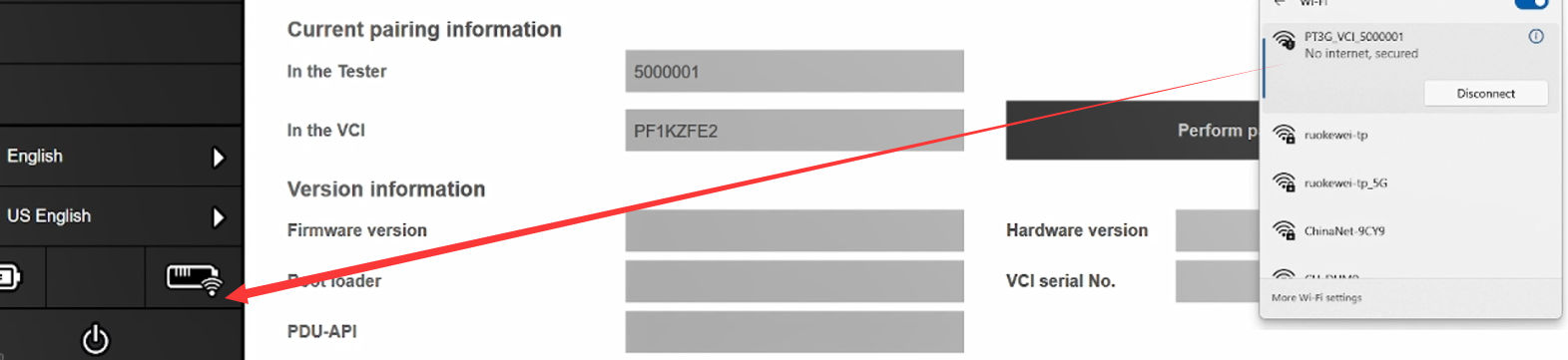
Note: The AP connection uses a wireless adapter, and when you have only one wireless adapter in your computer, you will not be able to access the Internet. If you want to connect to the Internet, you'll need an external wireless adapter.
Use VNCI RNM to do 2020MY TEANA ABS module progtramming
VNCI 6154A AP connection and WALN connection configuration
AP connection configure
Default WIFI SSID : {VNCI 6154A serial number}
Default WIFI Password: 12345678
Usage method:
1. First connect the VNCI 6154A to the car or OBD16 for power supply
2. In the wireless network search box, find the VNCI 6154A WIFI SSID, enter the password and connect
Note: The AP connection uses one of your computer's wireless cards. If your computer only has one wireless card, you will not be able to access the Internet. The solution is to add an external wireless adapter
Customize the VNCI 6154A WIFI SSID and password:
1. First connect the VNCI 6154A to your computer via USB cable
2. Open your browser to access the following address: 192.168.13.69
3. Click “CONNECTIVITY->WLAN Access Point” menu and then Select “WLAN operating mode after startup”, As shown in the following picture.
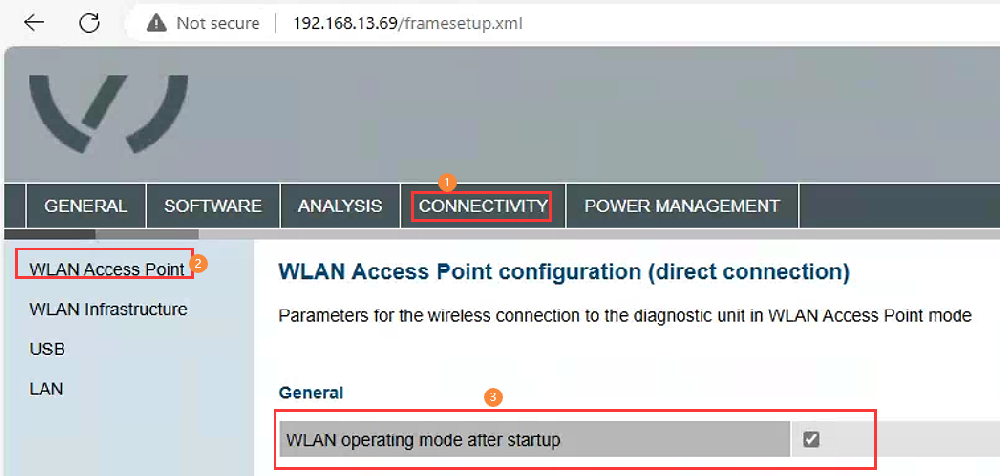
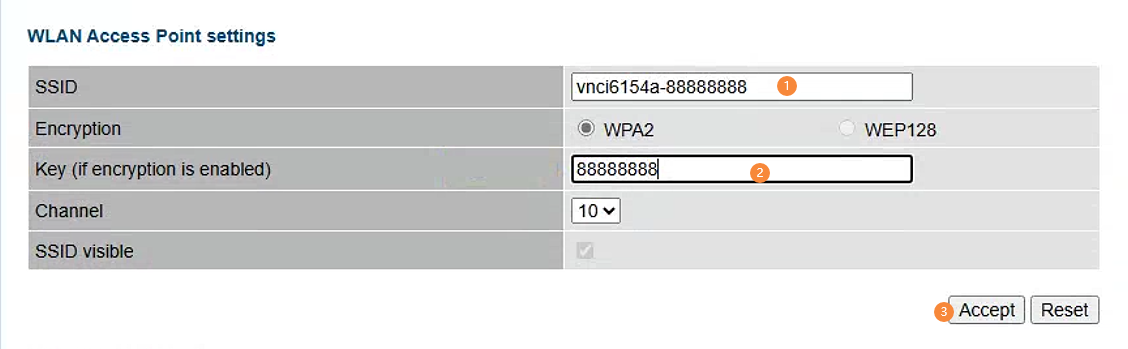
4. Configure your custom WIFI SSID and password on the current page, then click Accept.
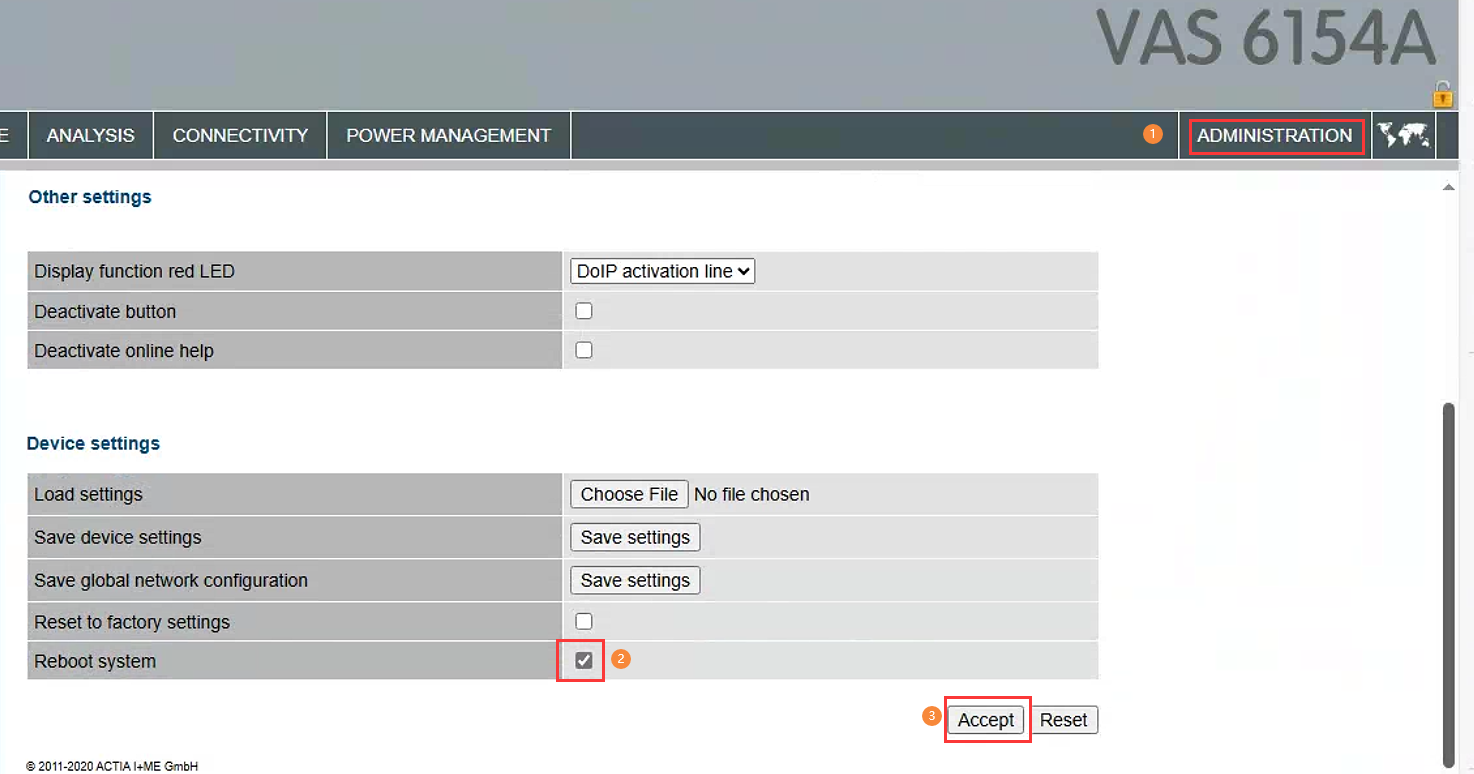
5. Select the "ADMINISTRATIOR" menu in the upper right corner, drop it to the bottom of the current page, select" Reboot System ", and click "Accept" to complete the configuration, After a successful restart, the device will make a deep sound, As shown below.
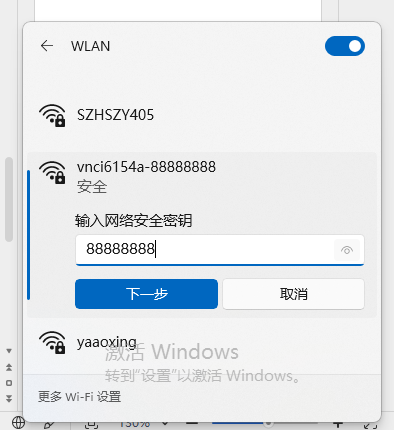
6. Disconnect the USB connection, connect the VNCI 6154A device to the car or OBD16 for 12v power, find our configured wireless information in the WIFI search box, select the custom SSID and enter the password to connect, As shown in the following picture.
WLAN connection configure
1. First connect the VNCI 6154A to your computer via USB cable
2. Open your browser to access the following address: 192.168.13.69
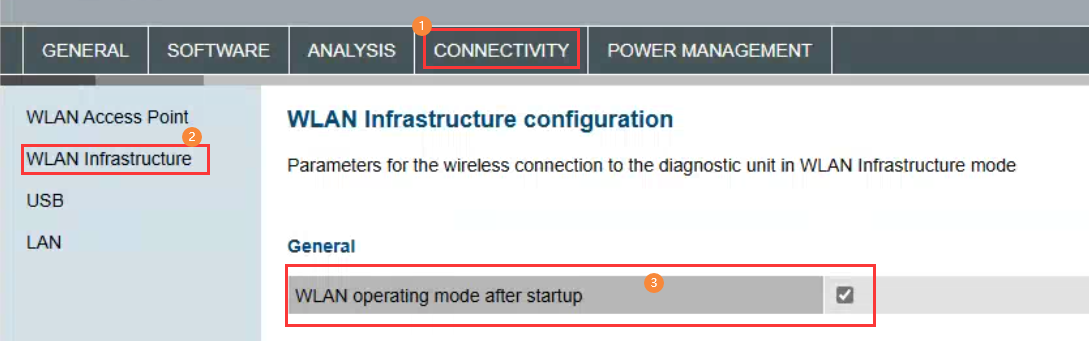
3. Click “CONNECTIVITY->WLAN Infrastructure” menu and then Select “WLAN operating mode after startup”, As shown in the following picture.
4. Drop down the current page to set the current WLAN SSID and password, After configuring the SSID and password and selecting the 2.4GHz communication frequency, and then click the Accept button, As shown in the following picture.
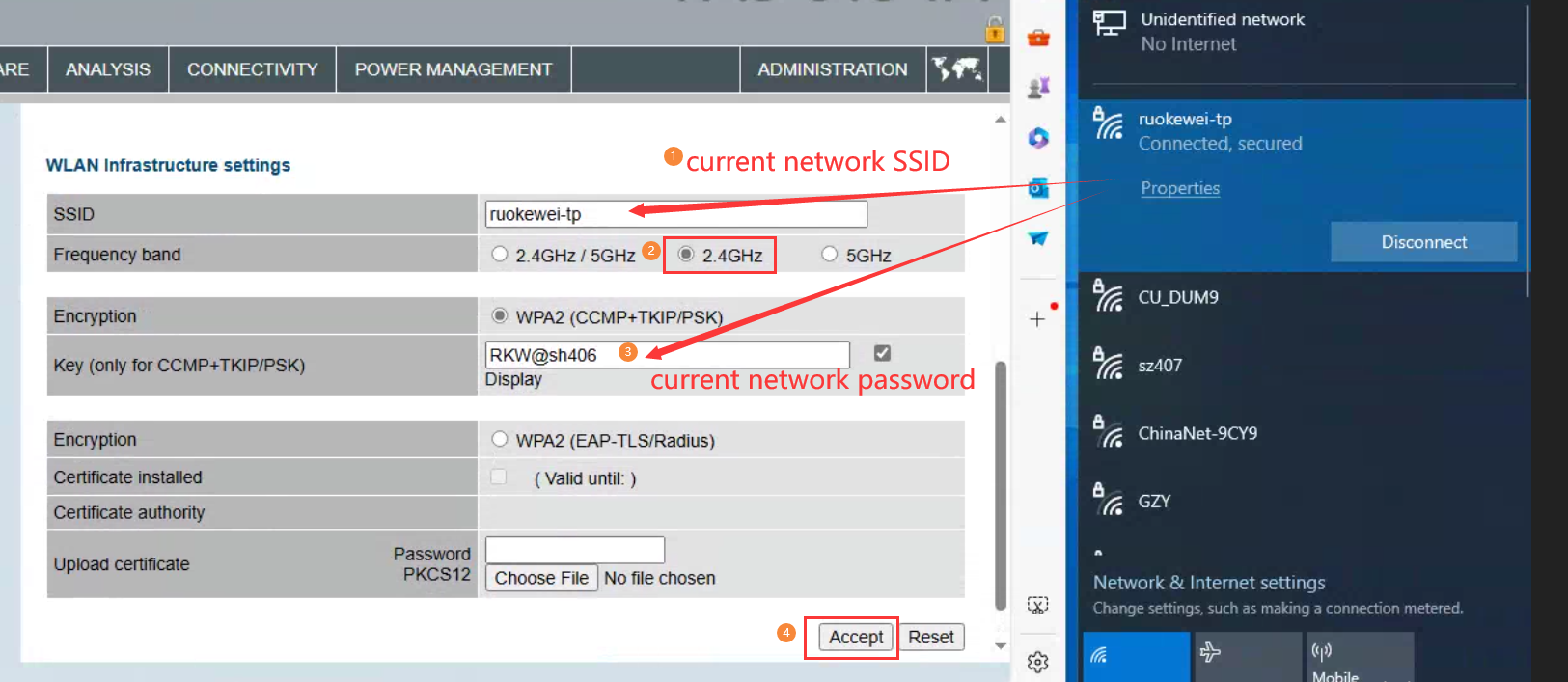
5. Select the "ADMINISTRATIOR" menu in the upper right corner, drop it to the bottom of the current page, select" Reboot System ", and click "Accept" to complete the configuration, After a successful restart, the device will make a deep sound. As shown below.
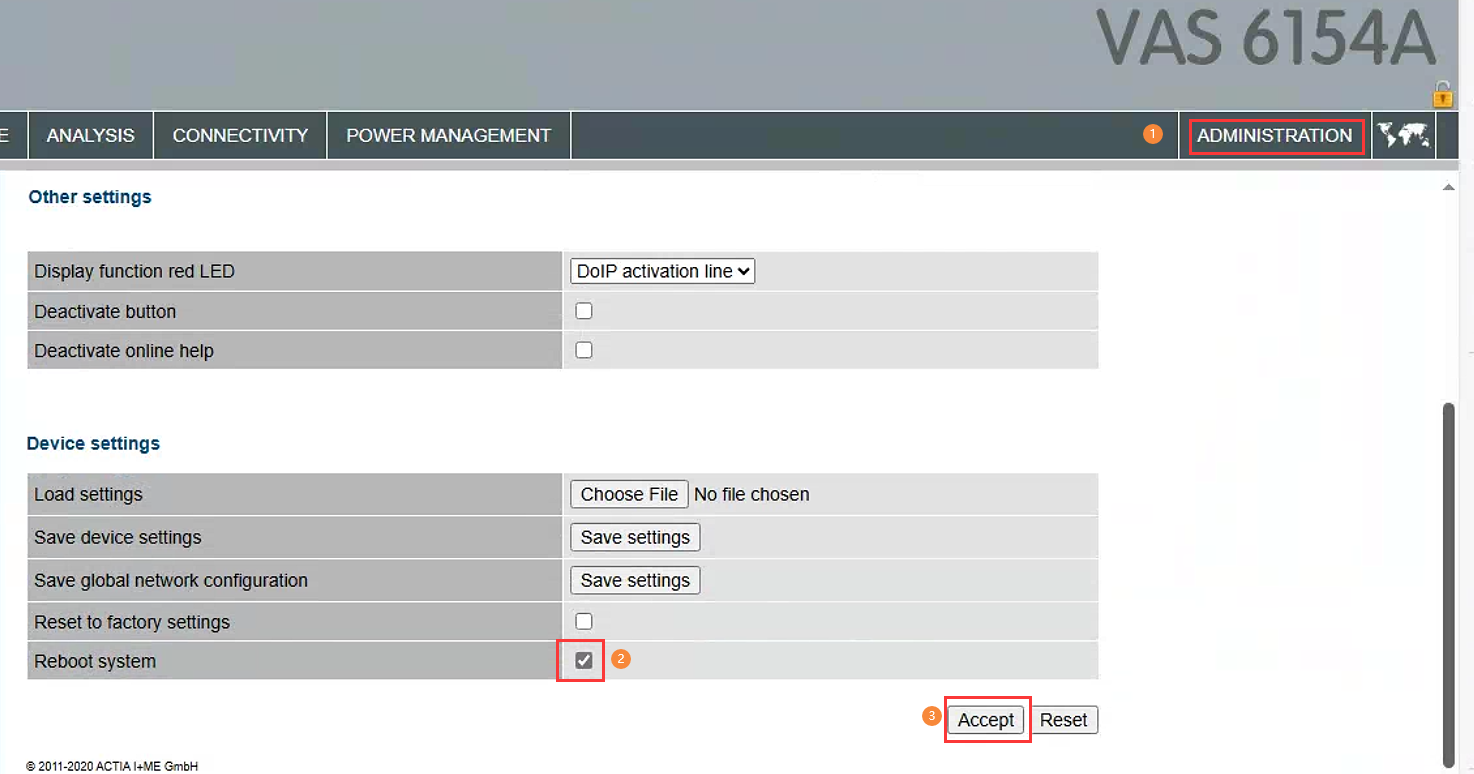
6. At this point, the VNCI 6154A device information has been added to the current WLAN "ruokewei-tp"(your WLAN), disconnect the USB cable, connect the VNCI 6154A device to your car or power the device with a 12 volt OBD16, when the VNCI 6154A make a long deep sounds, it indicate the VNCI 6154A device can be connected to any computer that using the same WLAN "ruokewei-tp"(your local area Network).
Note:
1. The frequency of the router that distributes the wireless LAN must be 2.4Ghz, and 5Ghz is not supported.
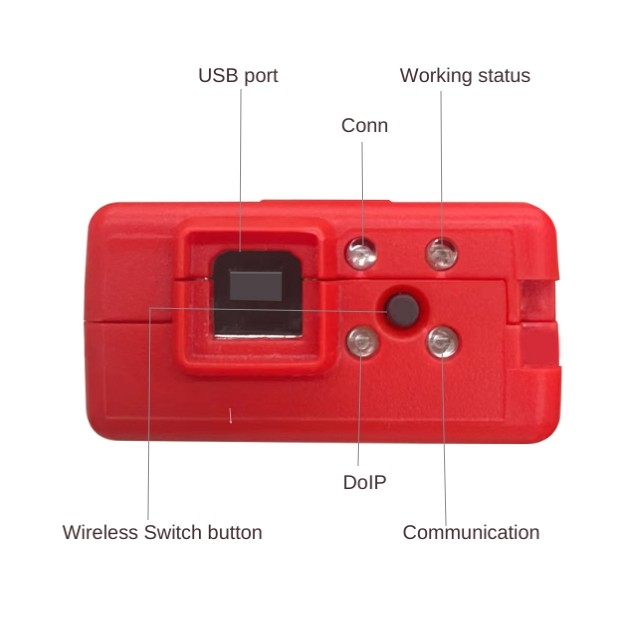
2. After you configure the AP connection and WLAN connection information, you can switch the AP connection and WLAN connection through the middle button of the device LED
VNCI MDI2 GM offline software(Tech2win/GDS2/DPS) installation guide, and actived Tech2win/GDS2/DPS s
Solved JLR SDD2 software and Edge broswser compatibility problem
When you use SDD2 software on windows10/11 system, it will have the following problems
"Your browser does not support PAGMCP ActiveX controls"
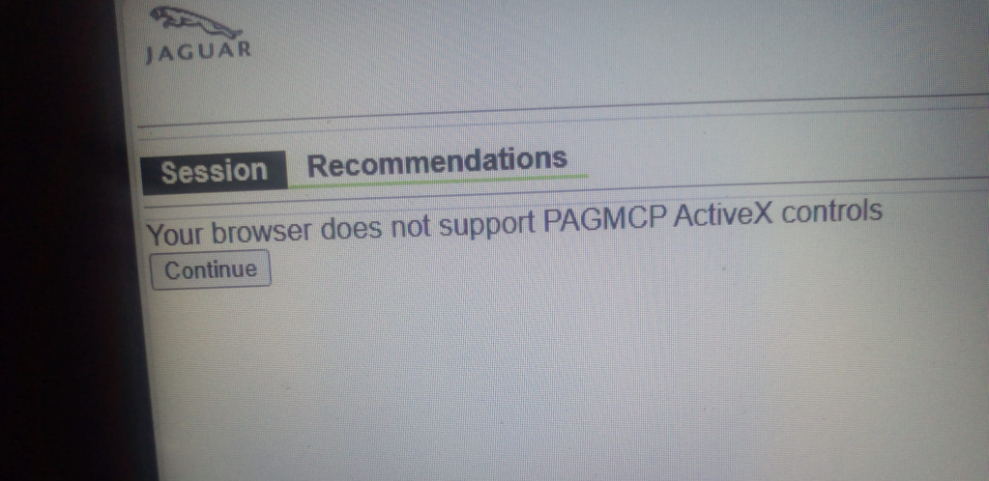
or
“SDD software updates have not been performed so functionality has been disabled. Click here to perform updates now”
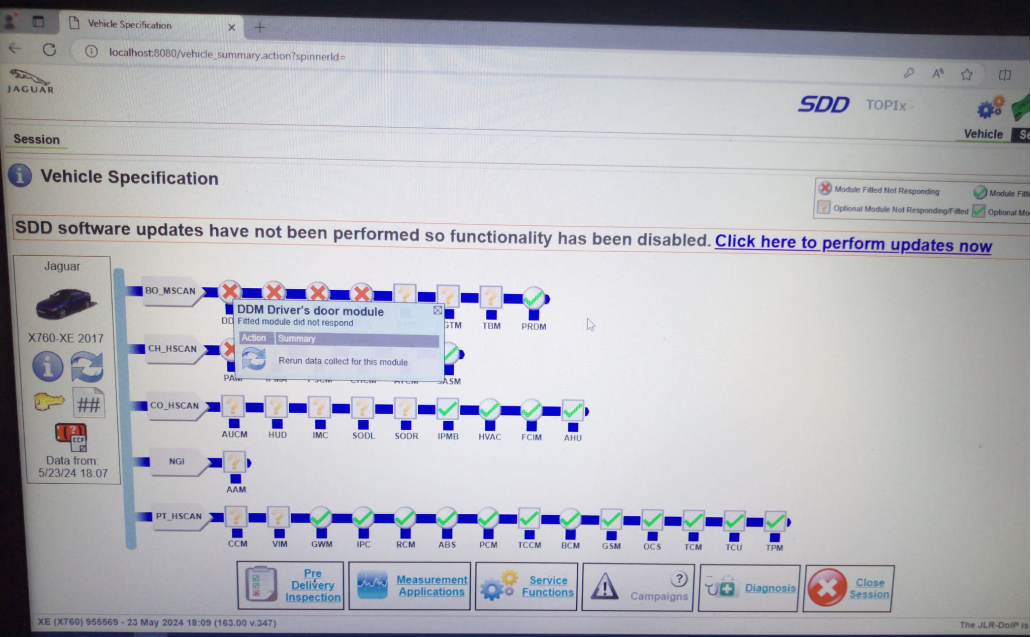
The above problem is very easy to solve, this problem is caused by the Edge browser does not add the IE compatibility mode, we only need to add the IE compatibility mode to the Edge browser.
Step1:
Open the Edge browser, then select Browser Settings at the top right of the browser, and select "Default Browser" at the left of the browser Settings. As shown in the following picture。
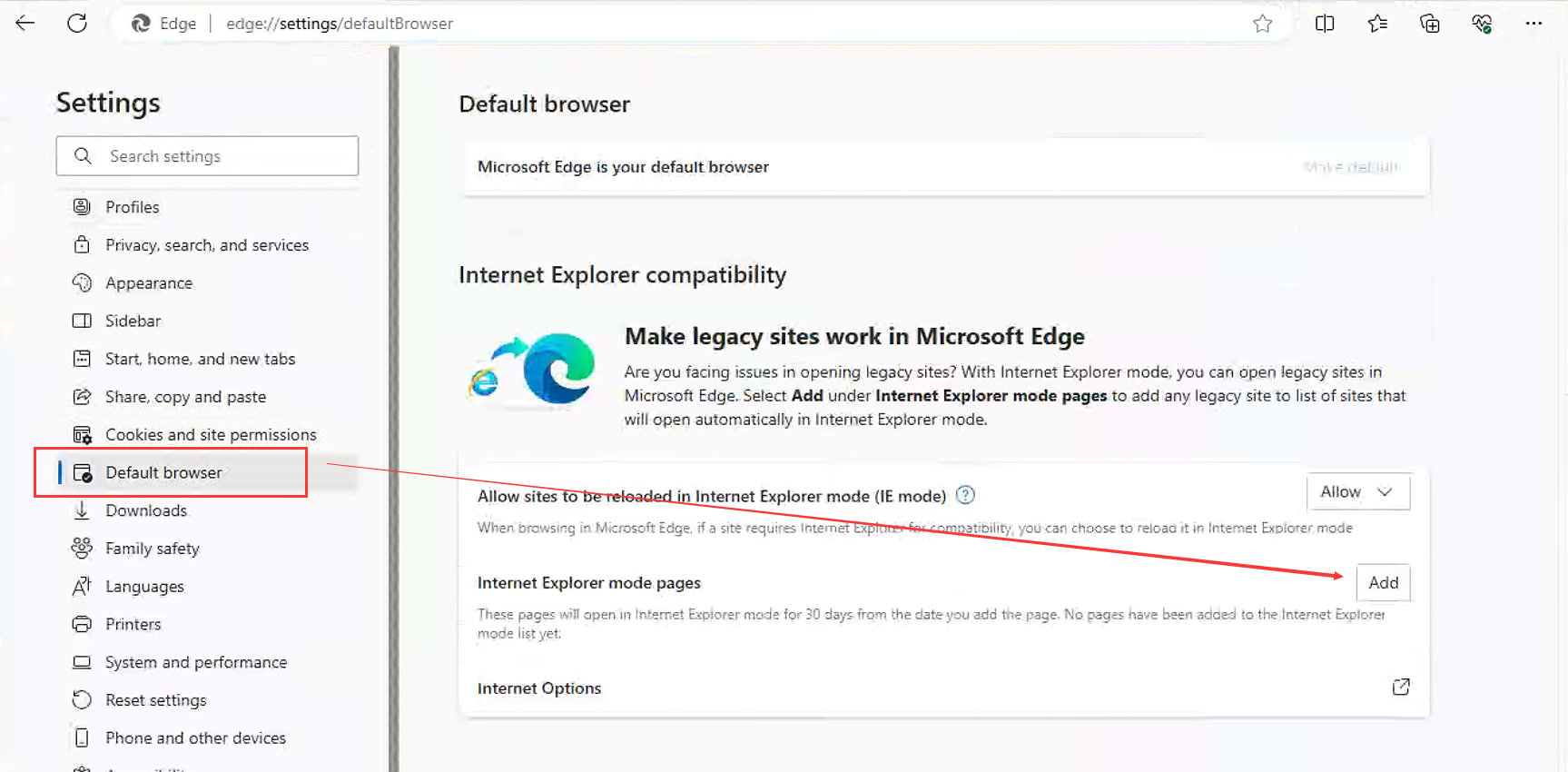
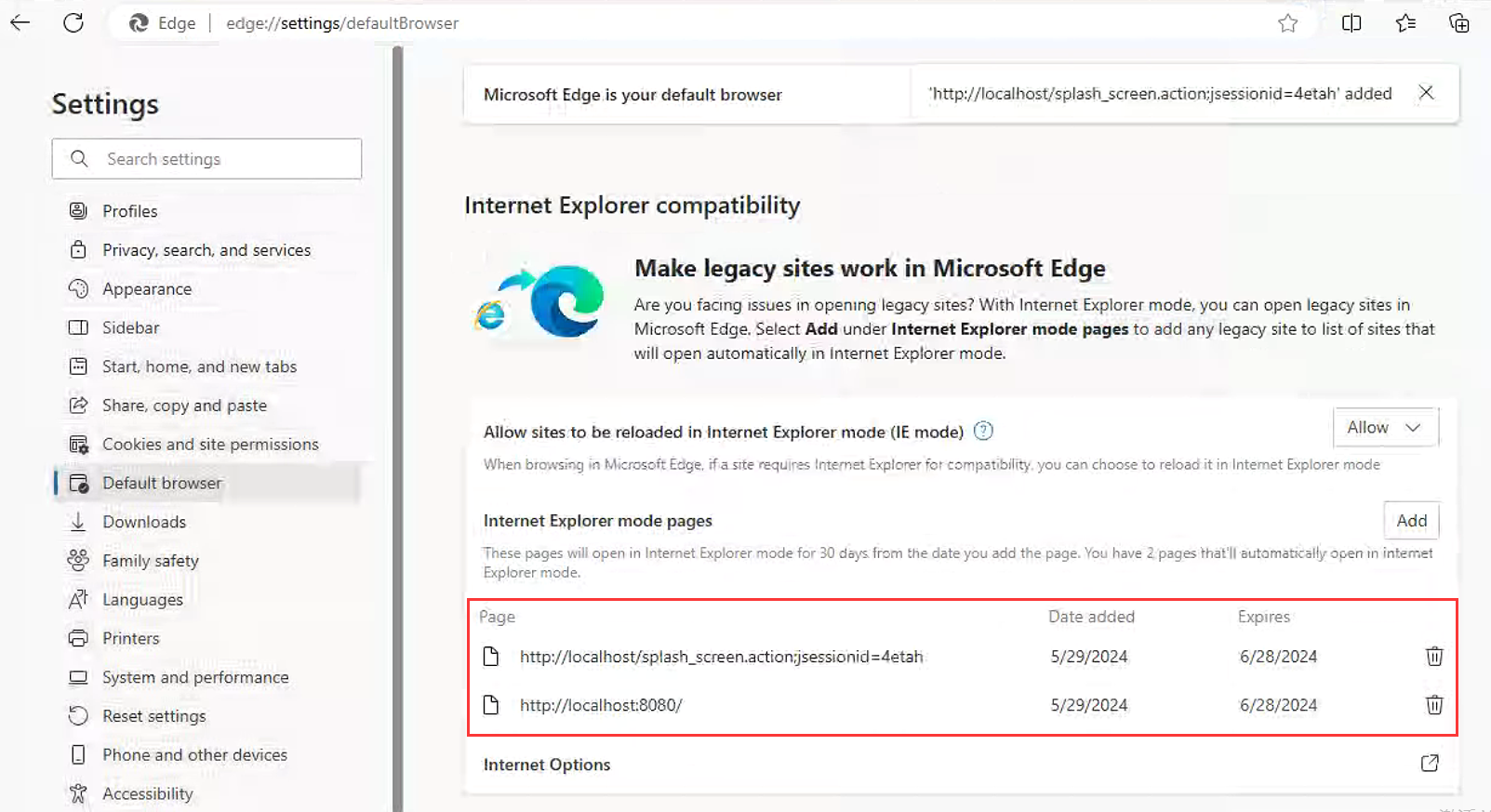
Then add the following content in IE compatibility mode, as shown in the following picture:
http://localhost/splash_screen.action;jsessionid=4etah
After the addition is complete, exit the browser and start the JLR SDD software again. The above two error messages will not appear
Solved VNCI PT3G can not connect PIWIS3 software problem
If your VNCI PT3G device is unable to connect to your PIWS3 software, it can be sure that your PIWIS3 software driver has been tampered with.
The tampered driver needs to be changed back to the PIWIS3 OEM driver.
Restoring the PIWIS3 OEM driver is simple and requires only two steps
Step 1: Replace the driver file
Step 2: Execute the PIWIS OEM Driver Registry
PIWIS OEM Driver Download:
https://mega.nz/file/CCpDkK4Q#eleGyKHWB2BQHeOouWgYHNMygpfvy2VRrGqi9ExfoCg
VNCI-Bosch diagnostic interface sync operate with bosch vci device manger
VNCI Bosch Series products:
VNCI MDI2, VNCI JLR DoIP, VNCI VCM3, VNCI RNM, VNCI VDI3, VNCI 6516SZ
VNCI Bosch series products operate synchronously
Sync: Synchronize the current computer VCI driver to the VNCI device so that the currently connected VNCI device can recognize the latest VNCI driver
on the current computer.
Operation:
Step 1: Install the current device VCI Device Manager software
Step 2: Install the VNCI Device Manager software
Step 3: Start the VNCI Device Manager software to complete the VNCI device synchronization with the current computer VCI device manager
Step 4: Start the VCI Device Manager software on the current computer to recognize the current VNCI device without update prompt.
VNCI bosch series diagnostic interface three connection mode
VNCI Bosch series of diagnostic products currently include VNCI MDI2 General Motors second generation diagnostic tool, VNCI RNM Nissan, Renault, Mitsubishi diagnostic tool, VNCI JLR DoIP Jaguar Land Rover diagnostic tool, VNCI VCM3 Ford Mazda diagnostic tool, VNCI diagnostic tool. VNCI VDI3 Roewe Wuling MG Maxus automotive diagnostic tool, VNCI 6516SZ Suzuki diagnostic tool. VNCI Bosch series diagnostic tools support usb connection, AP connection (wifi point-to-point connection) and WLAN station connection (wifi wireless LAN connection), VNCI Bosch series diagnostic products are compatible with Bosch original diagnostic software drivers. The VNCI Bosch diagnostic tool can replace the original Bosch series of diagnostic tools.
Resolve PIWIS3 software cannot connect to VNCI PT3G issue
When your PIWIS3 software cannot connect to the original PT3G/PT4G device or cannot connect to the VNCI PT3G device, your PIWIS3 software driver is tampered with or replaced. At this time, we need to restore the original PIWIS3 driver to normally connect the original PT3G/PT4Gs and VNCI PT3G devices.
The steps to restore the original PIWIS3 driver are as follows:
1. Download the original driver (the current driver version is v3.5.6)
2. Open the PIWIS3 driver location, delete all files below the location, and copy the original driver file to the location.
PIWIS3 driver location path: D:/PiwisApps/VCI/Actia_64/XS_D_PDU_API_64/
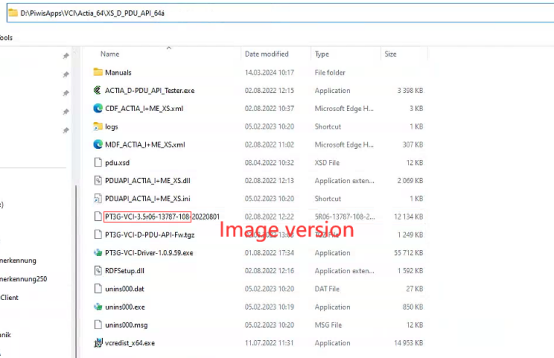
3. Copy the following registry contents to a text file with a.reg suffix, and double-click the file to run it.
Windows Registry Editor Version 5.00

[HKEY_LOCAL_MACHINESOFTWAREACTIA I+ME GmbHPT3G-VCIModule VersionsXS_D_PDU_API_64]

[HKEY_LOCAL_MACHINESOFTWAREACTIA I+ME GmbHPT3G-VCIModule VersionsXS_D_PDU_API_64.5.6]
"Image Version"="3.5r06-13787-108"
"Image File"="D:/PiwisApps/VCI/Actia_64/XS_D_PDU_API_64/PT3G-VCI-3.5r06-13787-108-20220801"
"Module Version"="3.5.6"
"Module File"="D:/PiwisApps/VCI/Actia_64/XS_D_PDU_API_64/PT3G-VCI-D-PDU-API-Fw.tgz"
"Image Boot Timeout"=dword:0001d4c0
"Update Timeout Default"=dword:00003a98
"Update Timeout Image"=dword:00030d40
"Update Timeout Module"=dword:0000afc8
"Module Name"="D-PDU-API"
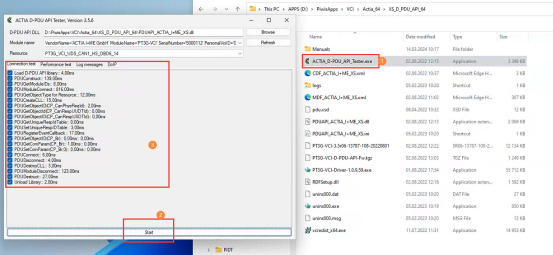
4. Finally, connect the VNCI PT3G or the original PT3G/PT4G device, run the ACTIA_D-PDU_API_Tester.exe program, click Start to run, all communication protocols are completely passed, indicating that the original device driver is fully restored to normal, as shown below:
Solved SDD software does not recognize VNCI JLR DoIP device problem
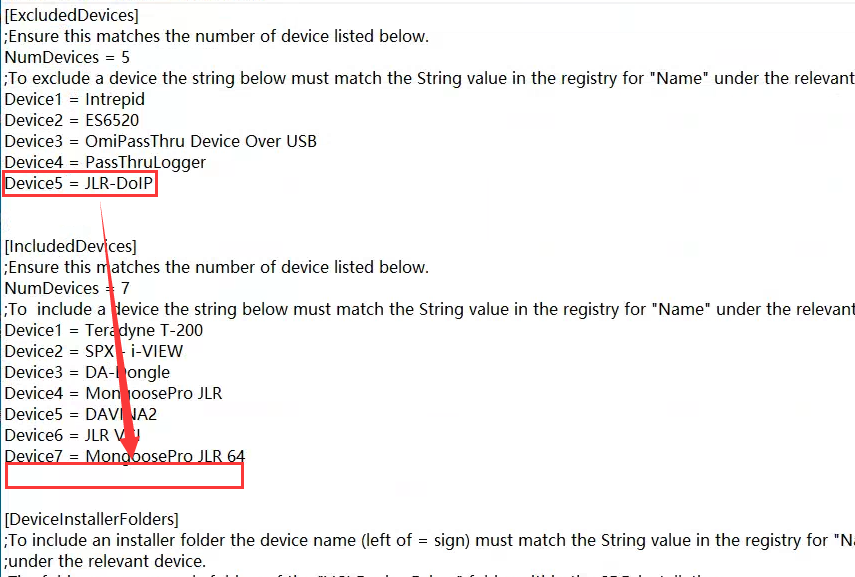
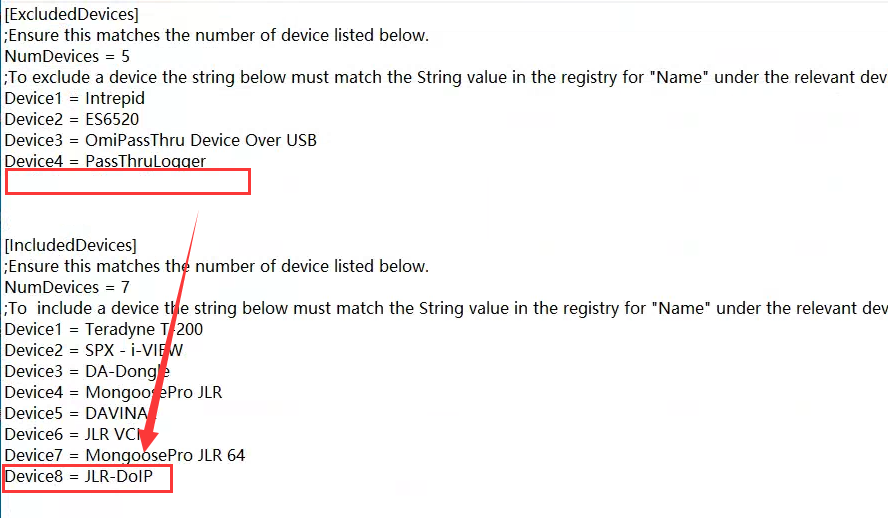
When you install the SDD and JLR driver software, you find that the SDD software does not recognize the VNCI JLR DoIP device. The main cause of this problem is that the SDD software system disables VNCI JLR DoIP.
To solve this problem, we just need to modify the SDD configuration file, it is very easy to do it.
Step1:
installing the SDD software and JLR device manager
Step2:
Open "C:Program Files (x86)/JLR/SDD/Runtime" folder
looking for "GatewayManager.ini" file and edit it
Before editing the file
After editing the file
Step3:
Open "C:Program Files (x86)/JLR/IDS/Runtime" folder
looking for "GatewayManager.ini" file and edit it
Edit the file as in Step2
Save the both files and running your sdd software, Your SDD software will be able to recognize VNCI JLR DoIP devices.
how to install tech2win, GDS, DPS, RDS software for VNCI MDI2
How to install C3P, CAN Clip and MUT-3 software for VNCI RNM
install nissan consult 3 plus software video
How to install IDS software for VNCI VCM3
Content coming soon.
How to install ODIS software for VNCI 6154A
There are three main steps to install ODIS software
1. Install the ODIS application
2. Import the license
3. Import the database file